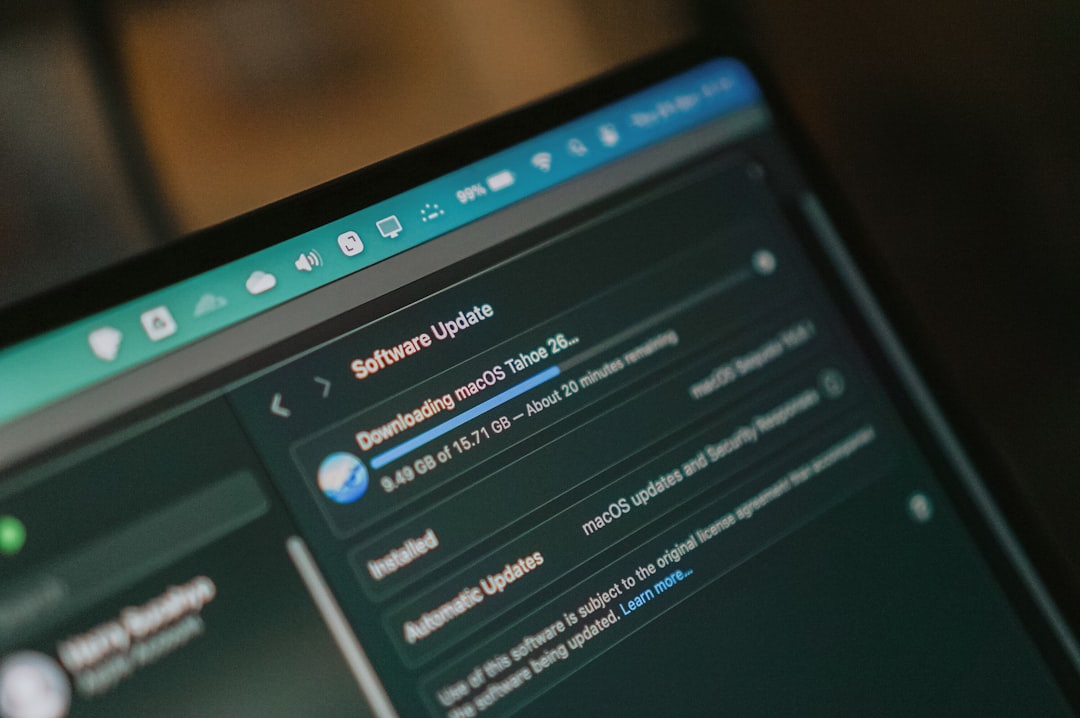
Your PC should feel like a helpful robot. You click. It moves. You open a file. It appears. But sometimes, your computer acts like it just woke up from a nap in a swamp. Apps crawl. Web pages freeze. The fan roars like a tiny jet engine. Do not panic. Most slow PCs are not haunted. They are just busy, messy, infected, or worn out.
TLDR: Your PC may be slow because too many programs start when Windows starts. It may also be slow because malware is hiding in the background and stealing power. Old or weak hardware can also create bottlenecks, especially low memory, a slow hard drive, or an aging processor. Clean the startup list, scan for malware, and check your hardware to make your PC feel fresh again.
First, What Does “Slow” Really Mean?
“Slow” can mean many things. Your PC may take forever to turn on. It may freeze when you open your browser. It may lag during games. Or it may make you wait while your mouse cursor spins like a tiny loading donut.
These problems can come from different places. Think of your PC like a kitchen. If too many cooks walk in at breakfast, things get crowded. If a raccoon sneaks in and steals food, things get weird. If your stove is ancient, dinner takes longer. That is your computer.
The three big suspects are:
- Startup programs that crowd your PC when it boots.
- Malware that runs in secret and causes trouble.
- Hardware bottlenecks that hold everything back.
Let’s meet each suspect.
Suspect 1: Startup Programs
Startup programs are apps that open by themselves when your PC turns on. Some are useful. Your antivirus should start. Your touchpad software should start. Your cloud backup may need to start.
But many startup programs are just dramatic guests. They show up early. They take snacks. They sit on the couch. And they slow down the party.
Common startup hogs include:
- Chat apps you do not use every day.
- Game launchers.
- Printer tools.
- Update helpers.
- Cloud storage apps.
- Music apps.
- Random toolbars and “assistants.”
Each one may seem small. But ten small apps can become one big traffic jam. Your PC has to load them all. Then it has to keep them running in the background.
How to Check Startup Programs
On Windows, press Ctrl + Shift + Esc. This opens Task Manager. Click Startup apps. You will see a list of programs that start with your PC.
Look at the Startup impact column. If something says High, it may be slowing your boot time. If you do not need it right away, disable it.
Do not worry. Disabling a startup app does not delete it. It only stops the app from opening by itself. You can still open it later, like a normal person with boundaries.
What Should You Disable?
Disable things you recognize and do not need at startup. For example, a game launcher does not need to wake up before you do. A music app can wait. A printer helper can probably chill.
Be careful with things you do not understand. If the name looks like it belongs to Windows, your graphics card, or your security software, search it first. Do not play “computer surgery” with a blindfold.
Suspect 2: Malware
Malware is bad software. It can sneak onto your PC through fake downloads, shady links, infected attachments, or sketchy pop ups. It may look harmless. It may even pretend to be helpful.
But malware is like a raccoon in a hoodie. It may steal your data. It may show ads. It may spy on your activity. It may use your PC to mine cryptocurrency. Worst of all, it may run quietly in the background and make everything slow.
Signs of malware can include:
- Your PC is suddenly much slower.
- Pop ups appear often.
- Your browser homepage changes.
- New toolbars appear.
- Unknown programs show up.
- Your fan runs hard when nothing is open.
- Your antivirus turns off by itself.
Malware is sneaky. It does not always wave a flag. Sometimes the only clue is that your PC feels wrong.
How to Hunt Malware
Start with Windows Security. It is built into Windows. Open it and run a Full scan. This may take a while. Let it finish.
You can also use a trusted second opinion scanner. Pick a known security tool. Avoid random “PC cleaner” pop ups. Many fake cleaners are just more junk wearing a fancy hat.
After scanning, remove anything dangerous. Then restart your PC. Check if speed improves.

How to Avoid Malware Next Time
Good news. You do not need to become a cyber wizard. A few simple habits help a lot.
- Download from official websites. Avoid mystery download buttons.
- Do not open weird attachments. Even if the email sounds urgent.
- Keep Windows updated. Updates fix security holes.
- Use a modern browser. Old browsers are easy targets.
- Do not install every free tool. Free can be expensive later.
Also, trust your gut. If a website screams, “YOUR PC HAS 9000 VIRUSES,” close it. Real security warnings do not usually act like a carnival barker.
Suspect 3: Hardware Bottlenecks
Now we meet the big one. Hardware bottlenecks happen when one part of your PC cannot keep up. The rest of the system has to wait.
Imagine a highway with five wide lanes. Then suddenly it turns into one tiny bridge. Traffic slows. That tiny bridge is the bottleneck.
In a PC, the bottleneck is often one of these parts:
- RAM, also called memory.
- Storage, especially old hard drives.
- CPU, the main processor.
- GPU, the graphics processor.
- Cooling, because hot parts slow down.
RAM: The Desk Space Problem
RAM is like desk space. If you have a big desk, you can spread out papers, snacks, notes, and maybe a tiny plant. If you have a tiny desk, everything stacks up. You waste time moving things around.
If your PC has too little RAM, it struggles with modern apps. Browsers are famous for this. Open enough tabs, and your browser becomes a hungry dragon.
For basic use, 8 GB of RAM is okay. For smoother multitasking, 16 GB is better. For gaming, video editing, or heavy work, more may help.
To check RAM use, open Task Manager. Click Performance, then Memory. If memory is often near full, RAM may be your bottleneck.
Storage: The Hard Drive Sloth
Old hard drives are slow. They have spinning parts. They read data with a moving arm. It is charming in a museum way. But not always fun in daily life.
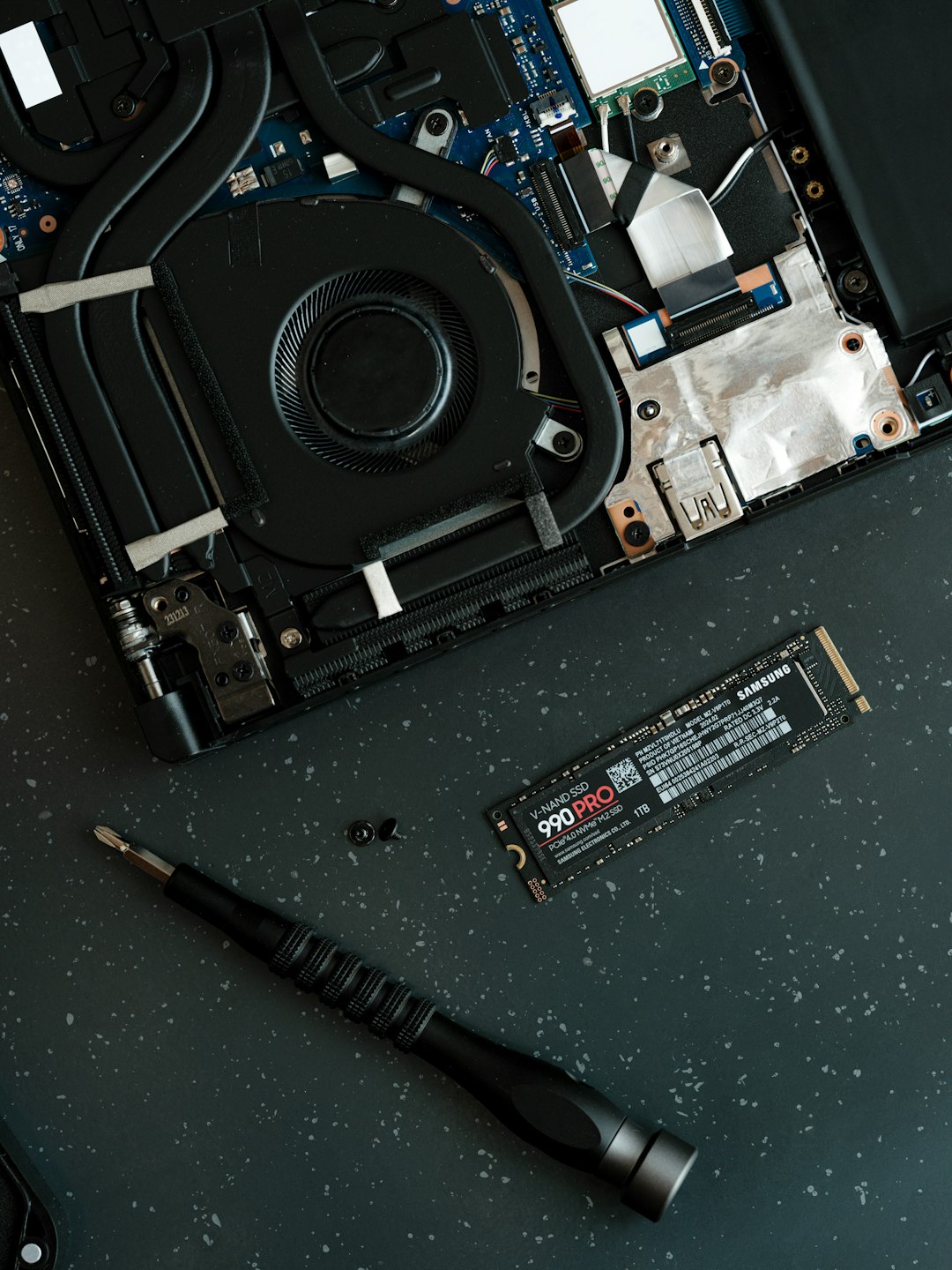
A solid state drive, called an SSD, is much faster. It has no spinning parts. It helps Windows boot faster. Apps open faster. Files load faster. Your PC may feel reborn.
If your PC still uses a hard drive as the main drive, upgrading to an SSD is one of the best speed boosts you can buy. It is like replacing a bicycle with a rocket powered scooter. Please wear a helmet in this metaphor.
CPU: The Brain of the Operation
The CPU is the main brain. It handles instructions. It runs programs. It keeps the show moving.
An older CPU may struggle with new software. This is common on older laptops. You may notice lag during video calls, file compression, games, or big spreadsheets.
Open Task Manager and check CPU under Performance. If CPU use is often stuck near 100%, something is pushing it hard. It could be a heavy app. It could be malware. Or the CPU may simply be old.
GPU: The Graphics Muscle
The GPU handles graphics. It matters most for games, 3D work, video editing, and some creative apps. If games stutter or video previews lag, your GPU may be the weak point.
For normal web browsing and office work, the GPU is usually not the problem. But for gaming, it can be the main character.
Cooling: The Secret Slowdown
Heat is sneaky. When parts get too hot, they slow themselves down to avoid damage. This is called thermal throttling. It sounds fancy. It means your PC is sweating and taking tiny breaks.
Signs of heat trouble include:
- Loud fans.
- Sudden slowdowns.
- Hot laptop surfaces.
- Games running well at first, then badly.
- Random shutdowns.
Dust can make heat worse. Clean vents gently. Keep laptops on hard surfaces. Do not use them on blankets. A blanket is cozy for you. It is a spicy sauna for your laptop.
Other Sneaky Reasons Your PC Is Slow
Startup programs, malware, and hardware are the big three. But there are smaller gremlins too.
- Your drive is almost full. Windows needs free space to breathe.
- Too many browser tabs are open. Tabs are not collectibles.
- Extensions are misbehaving. Browser add ons can slow things down.
- Updates are running. Sometimes Windows is busy in the background.
- Old drivers cause problems. Drivers help hardware talk to Windows.
A full drive is especially common. Try to keep at least 15% to 20% of your main drive free. Delete old downloads. Empty the recycle bin. Move big videos to another drive or cloud storage.
A Simple Speed Fix Checklist
Here is a quick plan. No lab coat needed.
- Restart your PC. Yes, really. It clears stuck processes.
- Disable unneeded startup apps. Use Task Manager.
- Run a full malware scan. Remove anything suspicious.
- Check RAM and CPU usage. Look for apps using too much.
- Free up storage space. Delete junk and old files.
- Update Windows and drivers. Keep things current.
- Clean dust from vents. Help your PC stay cool.
- Consider an SSD or more RAM. These upgrades help a lot.
When Should You Upgrade?
Upgrade when cleaning and scanning do not help enough. If your PC has a hard drive, get an SSD first. That upgrade often gives the biggest wow moment.
If memory is always full, add RAM if your PC allows it. Many desktops are easy to upgrade. Some laptops are easy too. Others are sealed tighter than a treasure chest.
If the CPU is very old, a new PC may make more sense. CPUs are hard to upgrade in most laptops. Sometimes the best repair is moving on. It is sad. But so is waiting five minutes for a browser to open.
Keep Your PC Feeling Fast
A fast PC is not magic. It is maintenance. Keep startup apps under control. Scan for malware. Watch your hardware. Clean dust. Leave free space. Update things.
You do not need to obsess over every number in Task Manager. Just check in now and then. Think of it like taking your computer for a tiny health check.
Your PC wants to help. It wants to open apps, stream shows, run games, and save your files. Give it fewer startup guests. Keep raccoon malware away. Remove hardware traffic jams when you can. Then your computer can stop crawling and start zooming again.
