
Video moves fast now. One second you are filming a snack review. The next second you are trimming it for YouTube Shorts, TikTok, and Instagram Reels. A good video cutting tool helps you remove boring parts, fix the rhythm, and make your clip feel sharp. It is like scissors, glue, and a sparkle wand in one app.
TLDR: The best video cutting tools are easy, fast, and made for the platform you use most. CapCut, InShot, VN, Adobe Premiere Rush, and DaVinci Resolve are great picks for many creators. Choose a tool that fits your skill level, device, and content style. If you want quick edits, pick a mobile app. If you want deep control, pick desktop software.
Why video cutting matters
People scroll fast. Very fast. If your video has a slow start, they may leave. If your clip has too much empty space, they may skip. Cutting helps you keep the fun parts and remove the dull parts.
A clean cut can make a joke hit harder. It can make a tutorial easier. It can make a vlog feel more exciting. It can also help you fit the right length for each platform.
- YouTube is great for longer videos, Shorts, reviews, tutorials, and vlogs.
- TikTok loves quick hooks, trends, cuts, captions, and bold energy.
- Instagram works well for Reels, Stories, lifestyle clips, and polished short videos.
The best tool is not always the most expensive one. It is the one you will actually use. It should feel simple. It should save time. It should not make you cry into your coffee.
1. CapCut
Best for: TikTok, Reels, Shorts, quick edits, trendy videos.
CapCut is one of the most popular video cutting tools right now. It is friendly. It is fast. It works on mobile and desktop. It is also packed with features that feel made for social media.
You can trim clips with a few taps. You can split a video, delete bad parts, and add smooth transitions. You can also use auto captions. That is a huge win. Many people watch videos with no sound. Captions help them stay.
CapCut is also great for trends. You can use templates, music, effects, filters, and speed changes. Want a dramatic zoom? Easy. Want a quick jump cut? Easy. Want text that pops like it drank three energy drinks? Also easy.
- Pros: Very easy to use, strong mobile app, great captions, fun effects.
- Cons: Some features need internet, and templates can feel overused.
- Use it if: You create short videos often and want speed.
2. InShot
Best for: Instagram Reels, Stories, TikTok, simple social edits.
InShot is a friendly editing app. It is great if you want to cut clips, add music, resize video, and post fast. It does not feel scary. It does not feel huge. It feels like a tidy little editing room in your pocket.
The trimming tools are simple. You can cut the start and end of a clip. You can split a clip in the middle. You can remove extra parts. You can also change the canvas size for TikTok, Instagram, or YouTube.
This is very helpful. Each platform has its own shape. TikTok and Reels usually use vertical video. YouTube can use horizontal video, vertical Shorts, or square clips. InShot makes this easy.
- Pros: Simple layout, great for beginners, fast resizing, nice filters.
- Cons: Not ideal for complex editing or big projects.
- Use it if: You want quick, clean edits without a learning curve.
3. VN Video Editor
Best for: creators who want more control but still want simplicity.
VN is a strong free video editor. It works on phones, tablets, and desktops. It feels a little more advanced than InShot, but it is still simple enough for beginners.
You can cut clips, layer videos, add music, adjust speed, and use keyframes. Keyframes sound fancy. They are not as scary as they sound. They let you move things over time. For example, you can make text slide across the screen.
VN is also good for clean edits. If you are making a mini vlog, a product demo, or a short tutorial, VN gives you room to work. It does not overload you with nonsense.
- Pros: Free, clean timeline, good control, useful for short and medium videos.
- Cons: Some tools take practice.
- Use it if: You want more editing power without jumping into pro software.
4. Adobe Premiere Rush
Best for: YouTube creators, mobile editors, and Adobe fans.
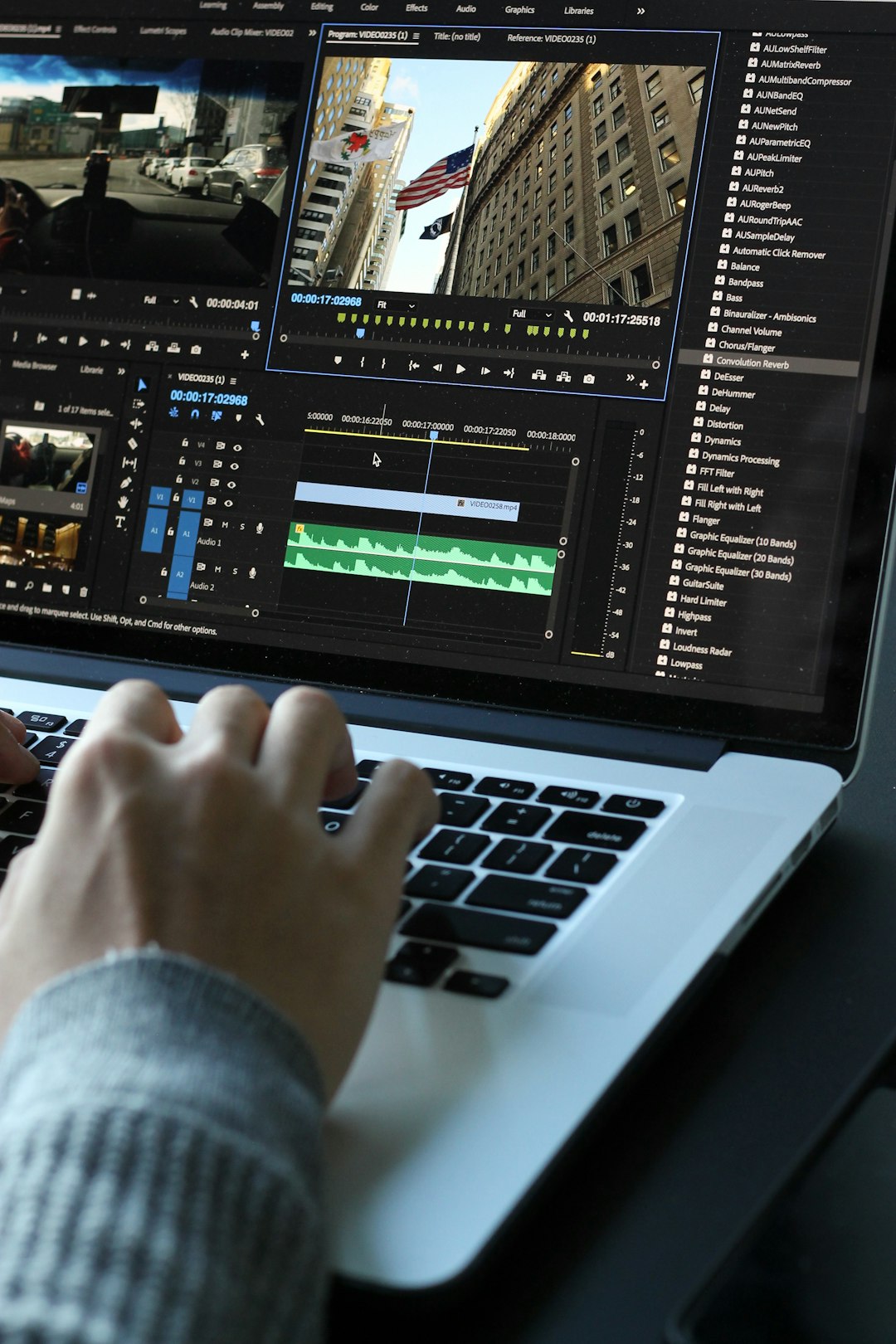
Adobe Premiere Rush is made for creators who want a simple editing flow. It is not as complex as Adobe Premiere Pro. That is a good thing for many people. You can cut, trim, add audio, insert titles, and export to social platforms.
Rush works well when you want to edit across devices. You can start on your phone and continue on your computer. That is handy if you film on the go but want to polish later.
The cutting tools are smooth. The interface is clean. It also has good options for color and audio. If your videos need a little shine, Rush can help.
- Pros: Clean design, works across devices, good for YouTube and social posts.
- Cons: Some users may want more advanced tools.
- Use it if: You like the Adobe world but want a simpler editor.
5. Adobe Premiere Pro
Best for: serious YouTube creators and professional editing.
Premiere Pro is a heavyweight. It is powerful. It is flexible. It can do almost anything. It is used by YouTubers, filmmakers, agencies, and editors who live on coffee and keyboard shortcuts.
For cutting, Premiere Pro is excellent. You can trim with precision. You can cut multi camera footage. You can edit long videos, podcasts, tutorials, and full YouTube episodes. You can also create Shorts and Reels from longer videos.
But here is the truth. Premiere Pro takes time to learn. It is not the best pick if you only want to trim a 15 second clip of your dog sneezing. Unless your dog is launching a film career.
- Pros: Very powerful, professional tools, great for long videos.
- Cons: Costs money, takes practice, can feel complex.
- Use it if: You make serious YouTube content or client videos.
6. DaVinci Resolve
Best for: YouTube videos, cinematic edits, color grading, creators on a budget.
DaVinci Resolve is famous for color editing. It is also a full video editor. And yes, it has a very strong free version. That makes it a favorite for creators who want pro tools without a giant bill.
You can cut videos quickly on the Cut page. You can also do detailed editing on the Edit page. It may sound like a lot, but you can start simple. Trim clips. Split clips. Add music. Export. Done.
Resolve is great for YouTube videos that need polish. It is also nice for creators who care about color. If you want your travel vlog to look dreamy, this tool can help.
- Pros: Powerful free version, great color tools, pro features.
- Cons: Needs a decent computer, can feel big at first.
- Use it if: You want professional power without paying right away.
7. Final Cut Pro
Best for: Mac users, YouTube creators, fast professional edits.
Final Cut Pro is loved by many Mac creators. It is fast. It is smooth. It handles big video files well. If you edit lots of YouTube content on a Mac, it can be a joy.
The magnetic timeline is one of its famous features. It helps clips snap into place. Some people love it. Some people need time to adjust. Once it clicks, editing can feel very quick.
Final Cut Pro is good for cutting long videos into tight stories. It is also useful for making clips from podcasts, interviews, and vlogs. You can create a full YouTube video, then cut smaller pieces for TikTok and Instagram.
- Pros: Fast on Mac, pro tools, smooth timeline.
- Cons: Mac only, paid software.
- Use it if: You are a Mac user who edits often.
8. iMovie
Best for: beginners, Mac users, iPhone users, simple YouTube videos.
iMovie is simple and free for Apple users. It is a great starting point. You can trim clips, split clips, add titles, place music, and export your video. It does not have every fancy feature. But that can be a bonus.
Sometimes too many buttons make editing harder. iMovie keeps things calm. It is perfect for school projects, family clips, basic vlogs, and first YouTube videos.
- Pros: Free for Apple users, easy, clean, beginner friendly.
- Cons: Limited advanced tools.
- Use it if: You are new and want a no stress editor.
9. YouTube Create
Best for: YouTube Shorts and simple mobile edits.
YouTube Create is built for YouTube creators. It helps you edit right from your phone. You can cut clips, add music, clean up audio, add captions, and prepare Shorts.
This is useful if your main home is YouTube. It keeps the process simple. Film. Cut. Add caption. Post. Smile. Repeat.
- Pros: Made for YouTube, simple mobile tools, good for Shorts.
- Cons: Not as feature rich as bigger editors.
- Use it if: You focus on YouTube Shorts and easy workflows.
10. Descript
Best for: talking head videos, podcasts, interviews, YouTube clips.
Descript edits video in a very clever way. It turns your speech into text. Then you can cut the video by editing the words. Delete a sentence in the transcript, and the video changes too.
This feels like magic. It is great for creators who make educational videos, interviews, reaction clips, or podcasts. You can remove long pauses, filler words, and mistakes quickly.
If you hate scrubbing through a timeline to find one tiny sentence, Descript may become your new best friend.
- Pros: Text based editing, great for speech, saves time.
- Cons: Not the best for highly visual edits.
- Use it if: Your videos include lots of talking.
How to choose the right tool
Do not pick a tool because someone said it is “the best.” Pick the tool that fits your life. Your time matters. Your device matters. Your comfort matters.
- If you edit on your phone: Try CapCut, InShot, VN, or YouTube Create.
- If you edit on a Mac: Try iMovie, Final Cut Pro, or DaVinci Resolve.
- If you make long YouTube videos: Try Premiere Pro, Final Cut Pro, or DaVinci Resolve.
- If you make lots of TikToks: Try CapCut or InShot.
- If you edit interviews: Try Descript.
- If you are brand new: Start with iMovie, InShot, or CapCut.
Quick cutting tips for better videos
Even the best tool will not save a boring edit. But a few simple habits can help a lot.
- Start fast. Cut the slow intro. Grab attention in the first few seconds.
- Remove dead air. Pauses feel longer on video than in real life.
- Use jump cuts. They keep talking videos moving.
- Match the platform. Use vertical video for TikTok, Reels, and Shorts.
- Add captions. Many viewers watch with sound off.
- Keep it clean. Too many effects can make a video feel messy.
- Watch before posting. Always check the final version. Tiny mistakes love to hide.
Final thoughts
The best video cutting tool is the one that helps you post more often and stress less. For fast social clips, CapCut, InShot, and VN are excellent. For serious YouTube work, Premiere Pro, Final Cut Pro, and DaVinci Resolve are powerful choices. For talking videos, Descript is wonderfully smart.
Start simple. Learn one tool. Cut the boring bits. Keep the fun bits. Then post. Your next great video may be hiding inside a messy clip right now. All it needs is a few clean cuts and a little creator magic.
