Your laptop wakes up, the fans spin, keyboard lights glow, and maybe you even hear the Windows login sound — but the display stays black. It is one of the most frustrating problems because the computer appears to be alive, yet you cannot see anything. The good news is that a laptop display not working while the PC is on usually comes down to a few suspects: a graphics issue, a loose or damaged display cable, a faulty screen, wrong display settings, or a power-related glitch.
TLDR: If your laptop is on but the screen is blank, first test brightness, keyboard display shortcuts, and an external monitor. If the external monitor works, the GPU is likely functional and the issue may be the laptop screen, backlight, or internal display cable. If no display appears anywhere, focus on GPU, RAM, BIOS, or motherboard troubleshooting. Start with simple fixes before opening the laptop or replacing parts.
Start with the obvious: is the screen really off?
Before assuming the GPU has failed or the screen is dead, check the simple things. Laptop displays can appear completely black when brightness is turned all the way down, when the system is stuck in sleep mode, or when the video output has been switched to an external display.
- Increase brightness: Use the brightness keys on your keyboard, usually marked with a sun icon.
- Toggle display modes: On Windows, press Windows + P, then press the arrow keys and Enter to cycle between display options.
- Wake the system: Press the power button briefly, move the mouse, or press keys such as Enter or Space.
- Check for an image in strong light: Shine a flashlight at the screen. If you see a faint desktop, the backlight may be faulty.
This quick inspection matters because a “dead screen” is not always a dead screen. Sometimes the laptop is simply outputting video to the wrong place or the backlight is not illuminating the panel.
Connect an external monitor
The most useful test is connecting the laptop to an external monitor or TV using HDMI, USB-C, DisplayPort, or VGA, depending on your device. This quickly separates a screen problem from a deeper graphics or motherboard problem.
If the external monitor shows your desktop, the laptop is still producing video. That means the GPU, operating system, and core hardware are probably working. In that case, focus on the built-in display, display cable, backlight, or hinge-related wiring.
If the external monitor also shows nothing, the problem may involve the GPU, RAM, BIOS, motherboard, or boot process. However, do not panic yet. A laptop can appear “on” while failing to complete startup, especially if memory is loose or firmware is stuck.
Listen and look for boot signs
A black screen can mean different things depending on what the laptop is doing behind the scenes. Pay attention to clues:
- Fan spinning and keyboard lighting up: The laptop is receiving power, but it may not be booting fully.
- Login sounds or notification sounds: The system is probably reaching the operating system.
- Caps Lock light responds: If the Caps Lock indicator turns on and off, the system is not completely frozen.
- Beep codes or blinking LEDs: These may indicate RAM, GPU, or motherboard errors.
Many laptop brands use blink codes to report hardware faults. For example, a pattern of blinking power or Caps Lock lights may point to memory, BIOS corruption, or display failure. Search your exact laptop model and the blink pattern if you notice one.
Perform a hard reset
A hard reset can clear temporary power states that stop a laptop from displaying video. This is especially useful after sleep mode failures, failed updates, or docking station issues.
- Turn the laptop off completely by holding the power button for 10 to 15 seconds.
- Unplug the charger and remove any connected devices.
- If the battery is removable, take it out.
- Hold the power button for 30 to 60 seconds.
- Reconnect the charger and try turning the laptop on again.
For laptops with internal batteries, simply disconnecting the charger and holding the power button may still help. Some models also include a small reset pinhole on the bottom.
Check for GPU-related problems
The graphics processing unit, or GPU, is responsible for generating the image that appears on your screen. In many laptops, graphics may be integrated into the CPU, while gaming or workstation laptops may also include a dedicated NVIDIA, AMD, or Intel Arc GPU.
A GPU issue may be suspected if the laptop shows no image on either the internal screen or an external monitor. Other signs include random crashes before the screen failed, distorted colors, lines, artifacts, overheating, or display failure after installing a graphics driver.
If you can reach the operating system using an external monitor, try these steps:
- Restart in Safe Mode: This loads basic display drivers and can bypass a bad GPU driver.
- Roll back the graphics driver: If the issue started after an update, return to the previous driver.
- Update drivers from the manufacturer: Use the laptop maker’s support page when possible, not only generic GPU drivers.
- Check temperatures: Overheating can cause display loss, shutdowns, or GPU instability.
If the GPU hardware itself has failed, repair can be expensive because many laptop GPUs are soldered to the motherboard. In that case, a motherboard replacement may be required. However, confirm the diagnosis carefully before assuming the worst.
Inspect the display cable
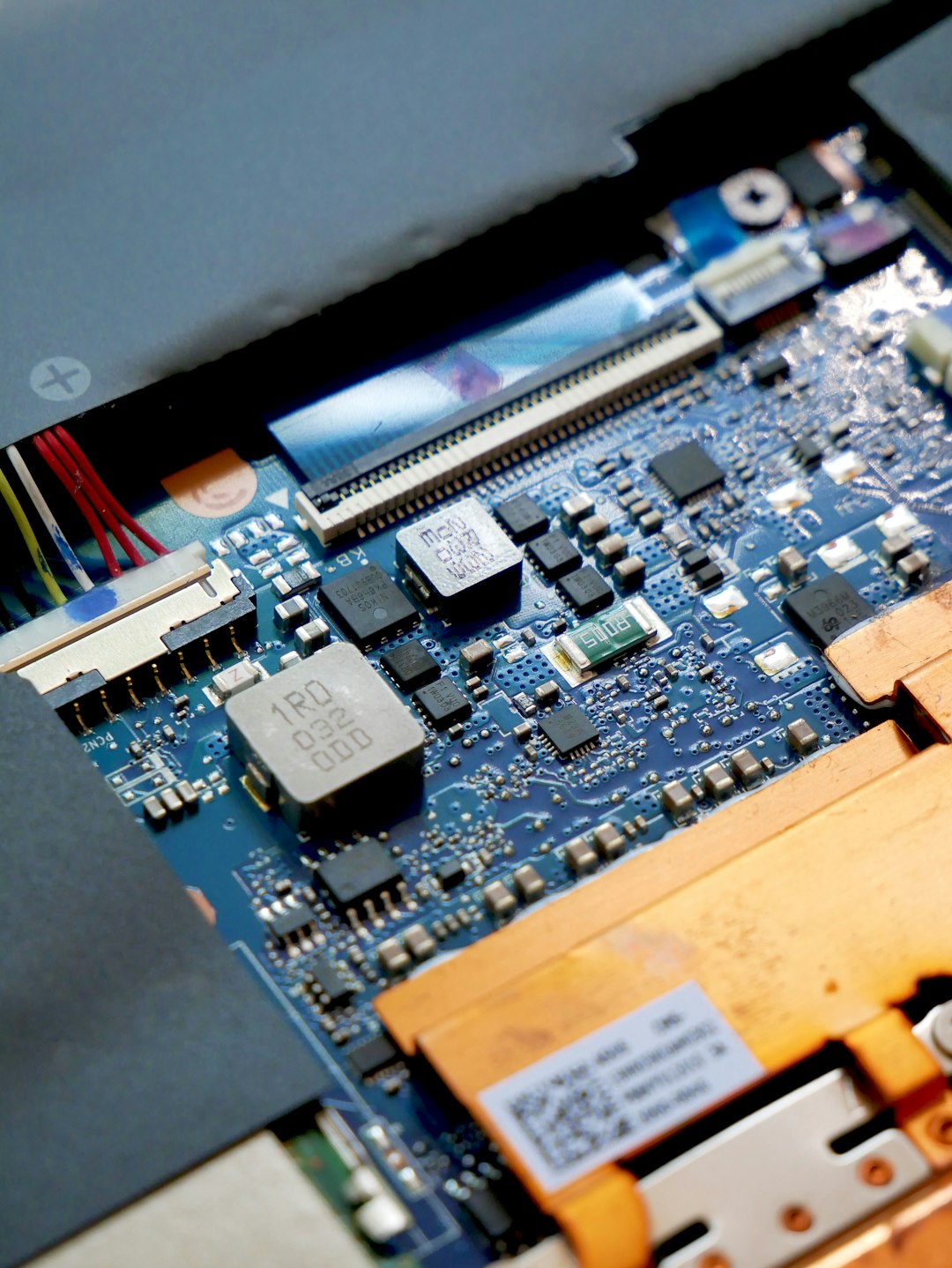
One of the most common causes of a laptop screen not working while the PC is on is a loose or damaged display cable. This cable runs from the motherboard through the hinge and into the screen assembly. Because it bends every time you open and close the laptop, it can loosen, wear out, or break over time.
Display cable problems often create specific symptoms:
- The screen works only at certain lid angles.
- The display flickers when the laptop lid is moved.
- There are vertical lines, random colors, or a white screen.
- The external monitor works perfectly, but the built-in screen does not.
- The webcam or microphone also stops working, since those cables may run through the same hinge area.
If you are comfortable opening laptops, you can reseat the display connector on the motherboard and sometimes behind the screen panel. Always disconnect power first, and if possible, disconnect the battery before touching internal components. Display connectors are delicate; forcing them can damage the motherboard.
If the laptop has been dropped or the lid feels loose, the cable may be damaged rather than merely disconnected. Replacing a display cable is usually much cheaper than replacing the entire screen or motherboard.
Look for signs of screen or backlight failure
When an external monitor works but the laptop screen remains black, the panel itself may be faulty. Laptop screens can fail due to impact, pressure, liquid damage, electrical faults, or age. A cracked screen is obvious, but backlight and panel failures can be more subtle.
Use the flashlight test: turn the laptop on, wait for it to boot, and shine a bright light at the display from an angle. If you can faintly see the login screen or desktop, the LCD may be producing an image, but the backlight is not working. On modern LED screens, this may require replacing the panel, though in some cases the cable or power circuit is the cause.
Common signs of a bad screen include:
- Faint image: Usually points to backlight failure.
- Colored vertical or horizontal lines: Can indicate panel damage or cable issues.
- White screen: Often related to a cable, panel, or display controller issue.
- Black blotches or cracks: Physical LCD damage.
- Screen flickering: Could be cable, panel, refresh rate, or GPU driver related.
Replacing a laptop screen is often practical if the device is otherwise working well. Make sure you order a compatible panel using the laptop model number and existing screen specifications such as size, resolution, connector type, and refresh rate.
Reseat or test the RAM
It may sound unrelated, but RAM problems can cause a laptop to power on with no display. If memory is loose, faulty, or incompatible, the laptop may fail before it ever reaches the stage of showing the manufacturer logo.
If your laptop has removable RAM, power it off, unplug it, disconnect the battery if possible, and reseat the memory modules. Try booting with one stick at a time if there are two. If the screen works with one module but not the other, you may have found a faulty RAM stick.
On laptops with soldered memory, this test may not be possible, but blink codes or diagnostic lights can still point toward memory trouble.
Reset BIOS or UEFI settings
Sometimes the laptop is working, but firmware settings prevent normal display output. This can happen after a BIOS update, hardware change, or failed overclocking attempt on performance laptops.
Try entering BIOS or UEFI by pressing the correct key immediately after powering on. Common keys include F2, F10, F12, Esc, and Delete. If the BIOS appears on an external monitor but not the internal screen, that again points toward the internal display path.
Some laptops allow a BIOS reset by holding a specific key combination during startup. Others may require disconnecting the internal battery and CMOS battery, though this is more advanced. Check your manufacturer’s instructions before attempting it.
Consider liquid, impact, and hinge damage
If the display failed after a spill, drop, or hard bump, the cause may be physical damage. Liquid can corrode display connectors, short backlight circuits, or damage the motherboard. A drop can crack the panel internally or loosen the cable. Hinge damage is especially suspicious because the display cable passes through that area.
Do not keep powering on a laptop that recently got wet. Turn it off, disconnect power, and have it inspected. Repeated power attempts can turn a repairable problem into a motherboard replacement.
When should you repair or replace?
The best repair path depends on the diagnosis. If an external monitor works, the laptop may still be useful even before repair. You can back up files, continue working temporarily, and avoid panic. Screen and cable replacements are usually worthwhile on midrange or high-end laptops.
However, if there is no image on any display, no BIOS access, and signs point to motherboard or GPU failure, compare repair cost against replacement value. For an older laptop, investing in a new machine may make more sense. For a gaming, business, or workstation laptop, professional board-level repair may still be worth it.
Final checklist
- Raise brightness and wake the laptop fully.
- Use Windows + P to change display output.
- Test with an external monitor or TV.
- Perform a hard reset and remove accessories.
- Check for faint images with a flashlight.
- Look for flickering, lines, or lid-angle changes.
- Reseat RAM if accessible.
- Update, roll back, or reinstall graphics drivers if you can see output externally.
- Inspect or replace the display cable if symptoms point to hinge or cable failure.
- Replace the screen if the panel or backlight is confirmed bad.
A laptop that is on but has no working display can feel like a mystery, but methodical testing usually reveals the cause. Start outside the laptop with brightness, display mode, hard reset, and external monitor tests. Then move inward toward the GPU, cable, RAM, BIOS, and screen. With patience, you can often separate a simple cable or panel fault from a serious graphics or motherboard failure — and choose the smartest repair instead of guessing.
