DaVinci Resolve is widely regarded as one of the most powerful video editing platforms available today. However, even the most robust software can encounter frustrating issues. One common problem editors face is projects not saving properly. Whether it is a failed manual save, autosave not working, or entire project files disappearing, these issues can disrupt workflows and create unnecessary stress.
TLDR: If DaVinci Resolve projects are not saving, the issue is usually related to disk permissions, database corruption, autosave settings, storage location errors, or system crashes. Checking project library settings, verifying drive health, enabling autosave, and resetting preferences often fixes the problem. Regular backups and proper database management can prevent future data loss. Following structured troubleshooting steps will restore stability in most cases.
Understanding why projects fail to save is the first step toward resolving the issue effectively. Below is a comprehensive breakdown of causes, fixes, and preventative measures.
Common Reasons Why DaVinci Resolve Projects Are Not Saving
Several factors may prevent DaVinci Resolve from saving a project correctly. Identifying the root cause helps narrow down the solution.
1. Disk Permission Issues
If Resolve does not have permission to write data to the selected drive or folder, saves will fail. This often occurs after operating system updates or when storing projects on external drives.
2. Corrupted Project Database
DaVinci Resolve uses a database structure to manage projects. If the database becomes corrupted, projects may fail to save or open entirely.
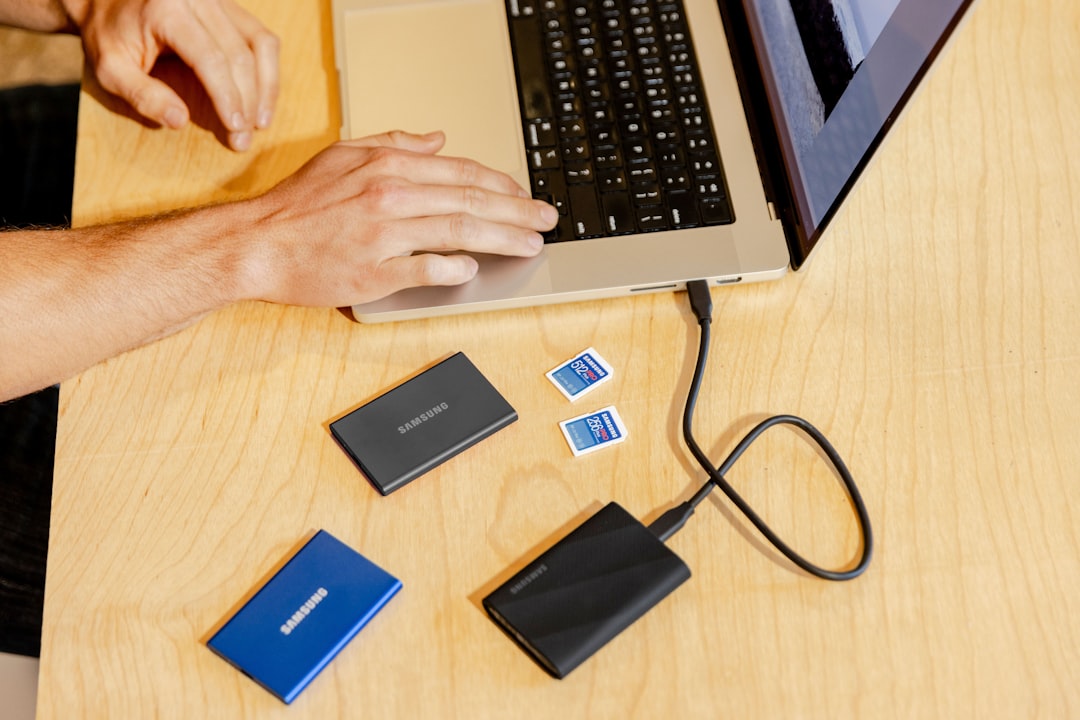
3. Drive Connection Problems
Using external SSDs or HDDs is common for video editing. However, loose cables, failing drives, or sudden disconnections during editing sessions may interrupt saving processes.
4. Autosave Not Enabled
If autosave and live save features are turned off, users rely solely on manual saving. Forgetting to save frequently increases the risk of losing progress.
5. Insufficient Storage Space
When a disk is full or nearly full, Resolve may fail to create new project versions or backups.
6. Software Bugs or Outdated Versions
Running an outdated version of DaVinci Resolve may cause unexpected errors. Updates often fix database handling and project-saving bugs.

How to Fix Projects Not Saving in DaVinci Resolve
The following step-by-step solutions address the most common saving problems.
Check Disk Permissions
- Right-click the project folder.
- Select Properties (Windows) or Get Info (Mac).
- Ensure read and write permissions are enabled.
- Apply changes to enclosed files if necessary.
On macOS, it may also be necessary to grant Full Disk Access to DaVinci Resolve in System Settings under Privacy & Security.
Verify Storage Location
Open the Project Manager and confirm where the database is stored. If it’s on an unstable external drive, consider moving it to an internal SSD.
- Open Project Manager.
- Click on the database icon.
- Select Connect or New Database.
- Create a new database on a reliable drive.
After creating a new database, export and import projects if needed.
Enable Live Save and Project Backups
To prevent future data loss:
- Go to DaVinci Resolve > Preferences.
- Select User > Project Save and Load.
- Enable Live Save.
- Enable Project Backups.
- Set backup intervals (e.g., every 10 minutes).
This ensures continuous saving without manual intervention.
Check Available Disk Space
Ensure at least 10–20% of drive capacity remains free. Video editing generates cache files, thumbnails, and optimized media, all of which consume storage.

Clear Cache and Temporary Files
Corrupted cache files may interfere with project stability.
- Go to Playback > Delete Render Cache > All.
- Manually clear cache folders from the designated cache location.
Restart Resolve after clearing files.
Update or Reinstall DaVinci Resolve
If saving failures persist:
- Check for updates on Blackmagic Design’s official support page.
- Install the latest stable release.
- If necessary, uninstall and reinstall the software.
Always back up databases before reinstalling.
Reset Preferences
Sometimes configuration settings cause instability. Resetting Resolve preferences can resolve hidden conflicts.
- Hold the Shift key while launching Resolve.
- Confirm reset when prompted.
This restores default settings without deleting projects.
Recovering Unsaved or Lost Projects
If a project was not saved and appears lost, recovery may still be possible.
Check Automatic Backups
Navigate to the backup folder specified in Preferences. Locate the most recent project backup and restore it via Project Manager.
Search for .drp Files
Exported project files use the .drp extension. Search the computer for these files and import them:
- Open Project Manager.
- Click Import Project.
- Select the .drp file.
Restore from Database Backup
If regular database backups were created, they can be restored:
- Open Project Manager.
- Click Restore.
- Select the database backup file.
Best Practices to Prevent Saving Issues
Preventative habits dramatically reduce the likelihood of encountering saving errors.
1. Use Internal SSDs for Databases
Internal SSDs offer stable, fast write speeds. External drives should primarily store media, not active databases.
2. Keep Software Updated
Regular updates provide bug fixes and compatibility improvements.
3. Enable Autosave and Incremental Backups
Incremental backups allow restoration to previous states in case corruption occurs.
4. Avoid Forced Shutdowns
Unexpected power loss during saving may corrupt databases. Use a UPS (Uninterruptible Power Supply) for desktop setups.
5. Maintain Drive Health
Use disk utility tools to check for:
- Bad sectors
- File system errors
- S.M.A.R.T. warnings
Replacing failing drives early prevents catastrophic data loss.
6. Manually Export Projects Regularly
Even with autosave enabled, exporting .drp files provides an extra layer of protection. Store them in cloud storage or separate drives.
When the Problem Isn’t Resolve
Sometimes the issue is not DaVinci Resolve itself but environmental factors.
- Antivirus software may block file writing.
- Corporate network restrictions can prevent database saves.
- Cloud sync conflicts (such as syncing databases directly through file-sharing platforms) may corrupt project files.
For best results, avoid placing active databases inside cloud-synced folders. Instead, back up to the cloud manually.
Signs of Database Corruption
If any of the following occur, the database may need rebuilding:
- Projects disappear randomly.
- Resolve crashes when saving.
- Error messages referencing “disk I/O” appear.
- Projects open but fail to update changes.
Creating a new database and migrating projects typically resolves corruption.
Final Thoughts
Projects not saving in DaVinci Resolve can feel catastrophic, especially during tight production deadlines. Fortunately, the issue is usually tied to storage location, permissions, drive health, or database configuration. By systematically checking each potential cause and implementing consistent backup strategies, editors can eliminate most saving errors.
Professional workflows prioritize redundancy and proactive file management. With proper setup and maintenance, DaVinci Resolve remains highly reliable and safe for long-term creative work.
Frequently Asked Questions (FAQ)
Why does DaVinci Resolve say “Failed to Save Project”?
This message commonly appears due to insufficient disk permissions, full storage drives, unstable external disks, or database corruption. Verifying drive health and project location usually resolves the issue.
Where are DaVinci Resolve projects saved?
Projects are stored inside a database rather than as standalone files. The database location can be viewed in the Project Manager under database settings.
Can I recover a project that was never manually saved?
If Live Save or project backups were enabled, recently saved versions may exist. Check the backup folder in Preferences or restore from a database backup.
Is it safe to store projects on an external drive?
While possible, it is safer to store active databases on internal SSDs. External drives are better suited for storing media files.
How often should project backups be created?
For active editing sessions, backups every 5–10 minutes are recommended. Incremental backups provide additional restore points.
Does updating DaVinci Resolve delete projects?
No, updates do not delete projects. However, backing up databases before major updates is strongly recommended for safety.
What is the safest way to protect projects?
Enable Live Save, schedule frequent backups, export .drp files regularly, maintain healthy storage drives, and avoid sudden system shutdowns.
