
The System Volume Information folder is a protected Windows system folder found at the root of most drives. It often looks suspicious because it may be hidden, inaccessible, and sometimes surprisingly large. However, in most cases, its size is not caused by malware or junk files; it is usually the result of Windows storing recovery, indexing, and system maintenance data.
TLDR: The System Volume Information folder becomes large mainly because of System Restore points, Volume Shadow Copies, indexing data, and backup-related features. It should not be deleted manually because Windows protects it for recovery and stability. The safest way to reduce its size is to manage restore point storage, delete old shadow copies, or adjust protection settings through Windows tools.
What Is the System Volume Information Folder?
The System Volume Information folder is used by Windows to store important metadata and system-managed data for each drive. On an internal system drive, it may contain restore point data, shadow copies, search indexing information, and other records used by Windows services. On external drives, USB drives, or secondary partitions, the folder may still appear because Windows creates it automatically when certain features interact with the drive.
By default, the folder is hidden and protected. Even an administrator may receive an Access Denied message when trying to open it. This is intentional. Windows restricts access because the folder can contain sensitive system data and files that should not be modified directly.

Why Can the Folder Become So Large?
The size of the System Volume Information folder depends on which Windows features are active and how much storage they are allowed to use. In some cases, it may only occupy a few megabytes. In others, it can grow to many gigabytes.
1. System Restore Points
The most common reason for a large System Volume Information folder is System Restore. Windows creates restore points before major updates, driver installations, software changes, or other system events. These restore points allow the system to roll back to an earlier state if something goes wrong.
Restore points are useful, but they can take considerable space. If Windows is allowed to use a large percentage of the drive for protection, old restore points may accumulate until the configured limit is reached.
2. Volume Shadow Copies
Volume Shadow Copy Service, often called VSS, creates snapshots of files or entire volumes. These snapshots are used by System Restore, backup software, server backup tools, and some file recovery features. Shadow copies can be especially large on systems where files change frequently, such as databases, virtual machines, development folders, or large media libraries.
On Windows Server systems, shadow copies may be configured for shared folders so older versions of files can be restored. If storage limits are too generous, the System Volume Information folder can grow quickly.
3. Windows Search Indexing
Windows Search may store indexing-related information that helps files appear quickly in search results. While search data is usually much smaller than restore points or shadow copies, it can still contribute to folder size, especially on drives with many files.
4. Backup or Third-Party Software
Some backup, imaging, antivirus, or disk management tools use Windows shadow copy technology. When these tools create snapshots or interact with VSS, additional data may be stored in System Volume Information. If a backup job fails or runs repeatedly, old snapshots may remain longer than expected.
5. External Drives and Secondary Partitions
Users often notice the folder on external storage and wonder why it exists there. Windows may create System Volume Information on removable drives for indexing, file history, restore information, or volume metadata. On most removable drives it is small, but it may grow if indexing or backup functions are enabled.
Is It Safe to Delete the Folder?
Manually deleting the System Volume Information folder is not recommended. Even if permissions are changed to gain access, removing files inside it can break restore points, damage shadow copy records, or interfere with Windows services. The folder will often be recreated automatically anyway.
A safer approach is to reduce the data stored inside it using Windows settings and administrative tools. This preserves system stability while freeing storage.
Safe Ways to Reduce Its Size
1. Adjust System Protection Storage Limits
On Windows client systems, System Restore storage can be adjusted through System Protection settings. An administrator can open System Properties, select the drive, click Configure, and reduce the maximum disk space used for restore points.
Lowering the limit causes Windows to delete older restore points automatically when space is needed. This is one of the safest and most effective ways to shrink the folder.
2. Delete Old Restore Points
Windows allows old restore points to be deleted without manually entering the folder. In the System Protection settings, the Delete option removes restore points for the selected drive. Disk Cleanup may also offer an option to remove all but the most recent restore point.
This method can reclaim several gigabytes, but it also reduces rollback options. If a system is currently unstable, deleting restore points may not be wise until a reliable backup exists.
3. Use Disk Cleanup or Storage Settings
Windows includes built-in cleanup tools that can remove temporary files, update leftovers, and some system recovery data. While these tools may not fully clear the System Volume Information folder, they help reduce overall disk pressure and may remove related system files safely.
- Disk Cleanup can remove system files and older restore data.
- Storage Sense can automatically clean temporary files and manage storage.
- Windows Update cleanup can free space after major updates.
4. Manage Shadow Copies with Administrative Tools
Advanced users and administrators can inspect shadow copy storage using command-line tools such as vssadmin. For example, shadow storage can be listed, resized, or old copies can be deleted. On servers, the Shadow Copies tab for a volume may provide more direct controls.
This should be done carefully. Removing shadow copies may affect backups, previous versions, and restore capabilities. In business environments, administrators should confirm retention requirements before deleting snapshots.
5. Disable Protection on Nonessential Drives
If System Protection is enabled on a secondary drive that does not need restore points, it can be turned off for that drive. This may significantly reduce the folder size over time. However, disabling protection means Windows will no longer keep restore information for that volume.
This approach may make sense for drives used only for temporary files, game libraries, downloads, or replaceable media. It is less suitable for drives containing important documents unless backups are maintained elsewhere.
6. Rebuild or Limit Search Indexing
If indexing data is part of the issue, Windows Search settings can be adjusted. Excluding large folders from indexing or rebuilding the index may reduce unnecessary storage use. This is usually a smaller improvement than deleting restore points, but it can help on systems with millions of files.

What Should Not Be Done?
Several risky actions should be avoided. The folder should not be removed by force, ownership should not be changed casually, and individual files inside the folder should not be deleted manually. Cleaning utilities that claim to erase protected system folders should also be treated with caution.
If the folder keeps growing after limits are reduced, the cause may be a stuck backup job, a VSS error, or misconfigured shadow copy storage. In that case, checking Event Viewer, backup logs, and shadow copy settings is safer than manual deletion.
How Much Space Is Normal?
There is no single normal size. On a healthy desktop, the folder may range from a few megabytes to several gigabytes. On systems with System Restore enabled, it may use a configured percentage of the drive. On servers or workstations with heavy file changes, shadow copies may consume far more.
The key question is not whether the folder is large, but whether its size matches the system’s protection settings. If it is using more space than expected, restore point limits and shadow copy allocations should be reviewed.
Conclusion
The System Volume Information folder is large because Windows uses it for recovery, snapshots, indexing, and volume metadata. Its size is usually a sign that protective features are active, not that anything is wrong. The safest solution is to manage restore points, shadow copies, and indexing through Windows settings rather than deleting the folder manually. With proper limits, the folder can remain useful without consuming excessive disk space.
FAQ
Why is System Volume Information taking up so much space?
It is usually storing restore points, shadow copies, or backup-related data. These files can grow large when Windows is allowed to reserve significant disk space for recovery.
Can the System Volume Information folder be deleted?
It should not be deleted manually. Windows protects it for system recovery and volume management, and deleting it can cause problems.
How can its size be reduced safely?
The safest methods are reducing System Protection storage limits, deleting old restore points, managing shadow copies, and adjusting indexing settings.
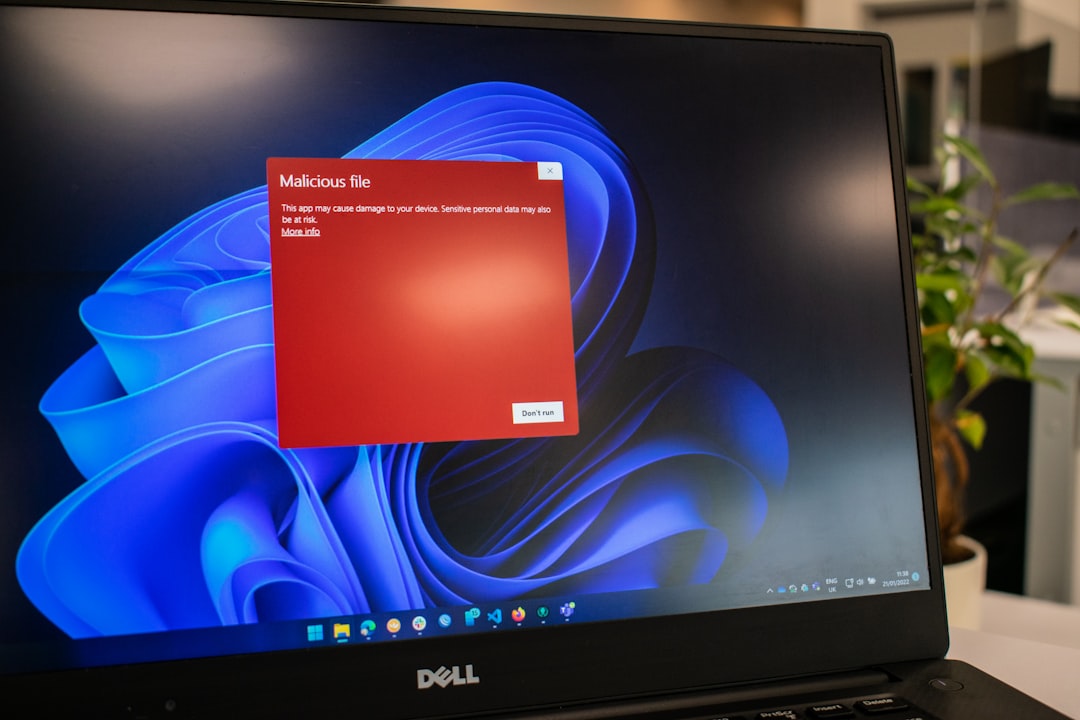
Is the folder a virus?
In most cases, no. It is a legitimate Windows system folder. However, malware can sometimes hide in protected locations, so a trusted antivirus scan is appropriate if suspicious behavior appears.
Why does the folder appear on an external drive?
Windows may create it on external drives for indexing, metadata, restore functions, or backup interactions. This is normal and does not usually indicate a problem.
Will disabling System Restore remove the folder?
Disabling System Restore may remove restore point data and reduce the folder size, but the folder itself may remain because Windows can still use it for other volume information.
