Trimming an M4A audio file on Mac should not feel like rocket science. You just want to cut the awkward silence. Or remove that loud cough at the start. Or maybe turn a long recording into a clean ringtone. The good news? You can do all that without losing sound quality. And you don’t need to be a tech wizard.
TL;DR: You can trim and cut M4A files on Mac using built-in tools like QuickTime and GarageBand, or free apps like VLC and Audacity. These tools let you edit audio without reducing quality if you export correctly. Online tools also work for quick jobs. Below are the top six easy methods, plus a comparison chart to help you choose fast.
Why M4A Files Are Easy to Work With
M4A is a popular audio format. Apple loves it. So Macs work with it smoothly. It usually uses AAC compression. That means good sound quality and smaller file sizes.
But here is the key tip.
If you want to avoid losing quality, do not convert the file to another format unless needed.
Instead, trim it while keeping the same format and settings.
1. Use QuickTime Player (Built-In and Simple)
This is the fastest method. And it’s already on your Mac.
QuickTime is not just for watching videos. It can trim audio too.
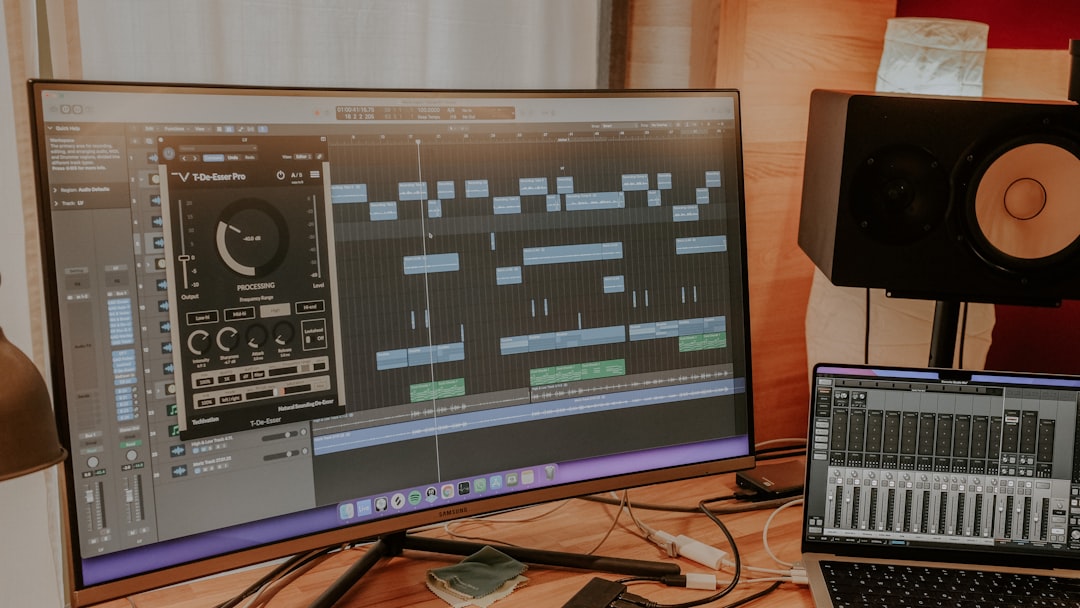
How to Trim M4A in QuickTime
- Open your M4A file with QuickTime Player.
- Click Edit in the menu.
- Select Trim.
- Drag the yellow sliders to choose the part you want.
- Click Trim, then save.
That’s it. Super simple.
Why it’s great:
- No extra downloads
- Very beginner-friendly
- Keeps quality if you save correctly
Limitation: It only trims from the start and end. You cannot cut pieces from the middle easily.
2. Use GarageBand (More Control, Still Free)
GarageBand is powerful. But don’t let that scare you. For trimming audio, it’s easy.
It gives you more control than QuickTime. You can cut sections from anywhere.
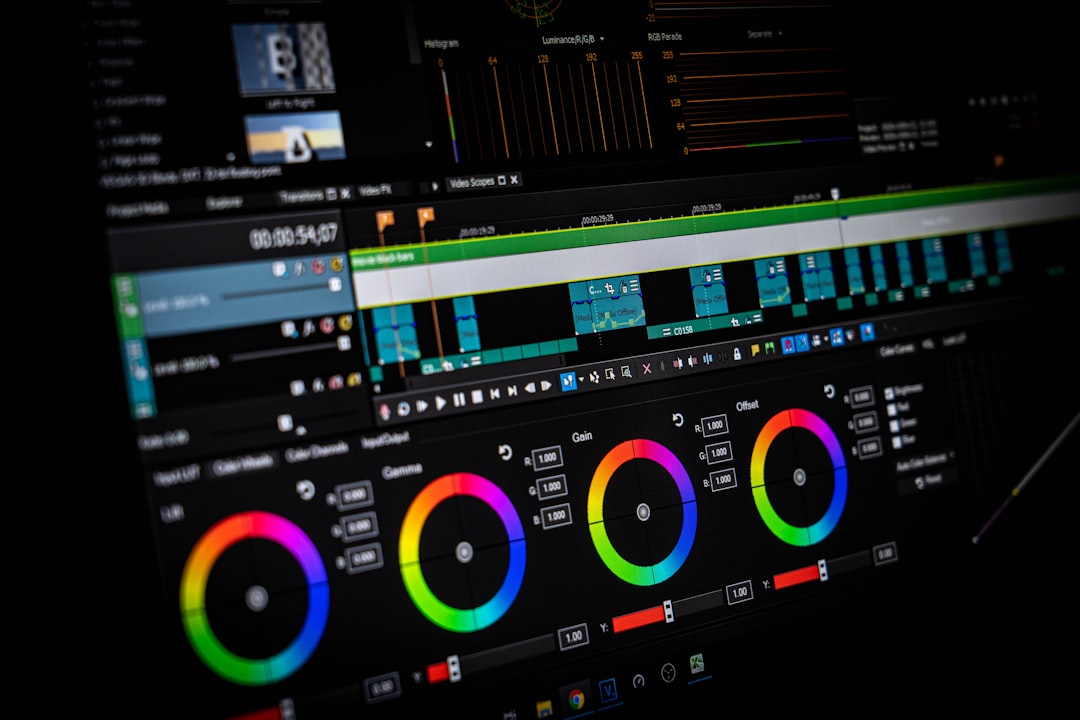
Steps to Trim in GarageBand
- Open GarageBand.
- Create a new empty project.
- Drag your M4A file into the timeline.
- Move the playhead to where you want to cut.
- Press Command + T to split.
- Delete unwanted parts.
- Export as M4A or AAC with original quality.
Why it’s awesome:
- Precise editing
- Remove mistakes from the middle
- Fade in and fade out options
Tip: When exporting, choose the highest quality setting to avoid compression loss.
3. VLC Media Player (Free and Flexible)
Most people think VLC is just for playing video.
Surprise. It can trim audio too.
It works best if you want a quick cut without installing music software.
How to Cut with VLC
- Open VLC.
- Enable Advanced Controls from the View menu.
- Play your audio.
- Press the red Record button when the section you want begins.
- Press it again when it ends.
- VLC saves the trimmed clip automatically.
Why use VLC?
- Free and lightweight
- Works with many formats
- Good for quick section recording
Downside: It’s not precise to the millisecond. More manual.
4. Audacity (Best Free Editor for Detailed Edits)
If you want serious control, use Audacity.
It’s free. It’s powerful. And it’s trusted.

How to Trim M4A in Audacity
- Download and install Audacity.
- Import your M4A file.
- Use the selection tool to highlight what you want to remove.
- Press Delete.
- Export as M4A or AAC at original bitrate.
Why it’s powerful:
- Extremely precise editing
- Remove background noise
- Add fades and effects
Important tip: Match the original bitrate when exporting. That keeps quality the same.
5. Use an Online Audio Trimmer (Fast and No Install)
Not everyone wants to download software.
Online audio trimmers exist for that reason.
You upload. Trim. Download.
How It Works
- Upload your M4A file.
- Drag the trimming sliders.
- Choose output format (M4A if available).
- Download the result.
Pros:
- No installation
- Very easy
- Great for quick edits
Cons:
- File size limits
- Privacy concerns
- Quality depends on export settings
Always select the highest quality option before downloading.
6. Use Apple Music App (Simple Trick for Quick Edits)
Here’s a little-known trick.
You can adjust start and stop times inside the Music app.
This method is perfect for ringtones or custom playback.
Steps
- Open the Music app.
- Right-click the song.
- Select Get Info.
- Go to the Options tab.
- Set the start and stop times.
- Create a new AAC version.
This does not change the original file. It creates a trimmed version.
Best for:
- Making short clips
- Creating iPhone ringtones
- Simple edits without waveform tools
Quick Comparison Chart
| Tool | Skill Level | Precision | Free? | Best For |
|---|---|---|---|---|
| QuickTime Player | Beginner | Low to Medium | Yes | Fast trimming from start or end |
| GarageBand | Beginner to Intermediate | High | Yes | Precise edits and fades |
| VLC | Beginner | Medium | Yes | Quick section recording |
| Audacity | Intermediate | Very High | Yes | Detailed editing and cleanup |
| Online Trimmers | Beginner | Medium | Usually | One-time quick edits |
| Music App | Beginner | Medium | Yes | Ringtones and short clips |
How to Avoid Losing Audio Quality
This part matters most.
Cutting audio does not automatically reduce quality. But exporting incorrectly does.
Follow these rules:
- Keep the same format (M4A or AAC).
- Match the original bitrate.
- Avoid converting to MP3 unless necessary.
- Do not re-export multiple times.
The fewer times you re-encode, the better.
What’s the Easiest Method Overall?
If you want speed: QuickTime.
If you want control: GarageBand.
If you want power: Audacity.
Most Mac users already have two strong tools installed.
That makes trimming M4A files surprisingly easy.
Final Thoughts
You do not need complex software to trim M4A files on Mac.
You do not need to sacrifice sound quality.
And you definitely do not need to be an audio engineer.
Start simple. Try QuickTime first. If you need more control, move to GarageBand or Audacity.
Once you do it once, it takes less than a minute next time.
Clean audio. No awkward silence. No quality loss.
Just the sound you want. Exactly how you want it.
