Your Mac keyboard is one of the most frequently used parts of your device, yet it’s also one of the most overlooked when it comes to cleaning. Tiny crumbs, dust particles, and debris can easily slip between the keys, affecting performance and hygiene over time. The good news? You don’t need to take your keyboard apart—or risk damaging it—to keep it clean and functioning properly.
TLDR: You can safely remove dust and crumbs from your Mac keyboard without disassembling it by using compressed air, a soft brush, a keyboard cleaning gel, a handheld vacuum, or a microfiber cloth with gentle tilting techniques. Each method is safe, affordable, and requires minimal equipment. The key is using light pressure and avoiding liquids or sharp tools. Regular maintenance prevents buildup and keeps your keyboard working smoothly.
Why Cleaning Your Keyboard Matters
Before diving into the methods, it’s important to understand why regular keyboard maintenance is essential. Dust and debris can:
- Cause sticky or unresponsive keys
- Interfere with key travel in low-profile Mac keyboards
- Create unpleasant odors over time
- Harbor bacteria and allergens
- Reduce the lifespan of your device
Modern Mac keyboards, especially those with scissor-switch or butterfly mechanisms, are particularly sensitive to trapped particles. Therefore, safe cleaning techniques are critical.
1. Compressed Air – The Most Recommended Method
Best for: Removing loose dust and crumbs stuck beneath keys.
Compressed air is widely considered the safest and most effective way to clean between Mac keyboard keys without dismantling anything.
How to Use It Properly
- Turn off your Mac and unplug it.
- Hold your laptop at a 75-degree angle (not fully vertical).
- Use short bursts of compressed air, moving in a left-to-right pattern.
- Rotate the keyboard and repeat from different angles.
Important: Avoid shaking the can and never insert the nozzle directly under the keys.
This method works especially well for fine dust and dry crumbs. It’s quick, affordable, and doesn’t require physical contact with delicate parts.
2. A Soft-Bristled Brush – Gentle and Controlled
Best for: Loosening debris that compressed air doesn’t remove.
A small, soft-bristled brush (such as a clean makeup brush or camera lens brush) offers more control when tackling stubborn particles.
Why It Works
The fine bristles can slip between narrow key gaps and gently dislodge debris without scratching surfaces.
Steps to Follow
- Shut down your Mac.
- Lightly tilt the keyboard.
- Brush in gentle, downward strokes.
- Let debris fall out naturally—never push it further inside.
This technique is ideal for people who work in dusty environments or frequently snack at their desk.
3. Keyboard Cleaning Gel – Surprisingly Effective
Best for: Picking up sticky dust and fine particles.
Keyboard cleaning gel (often marketed as cleaning slime) conforms to the shape of your keys and reaches into tight spaces.
How to Use It Safely
- Wash your hands before use.
- Press the gel gently onto the keyboard surface.
- Lift it slowly—do not rub vigorously.
- Repeat using clean sections of the gel.
The gel collects dust rather than blowing it deeper into the keyboard. However, ensure the product is high quality and not overly sticky, as cheap versions can leave residue.
Pro tip: Never leave the gel sitting on warm keys for extended periods.
4. A Mini Handheld Vacuum – Controlled Suction
Best for: Removing larger crumbs without air dispersion.
If compressed air tends to scatter debris across your desk, a small USB-powered keyboard vacuum might be a better option.
Key Advantages
- Provides direct suction
- Reduces mess
- Works well after brushing debris loose
Ensure you use a vacuum designed for electronics. Strong household vacuums can generate static electricity or apply excessive suction.
When using, hover slightly above the keys rather than pressing directly onto them.
5. Microfiber Cloth and Gravity Technique
Best for: Surface dust and routine maintenance.
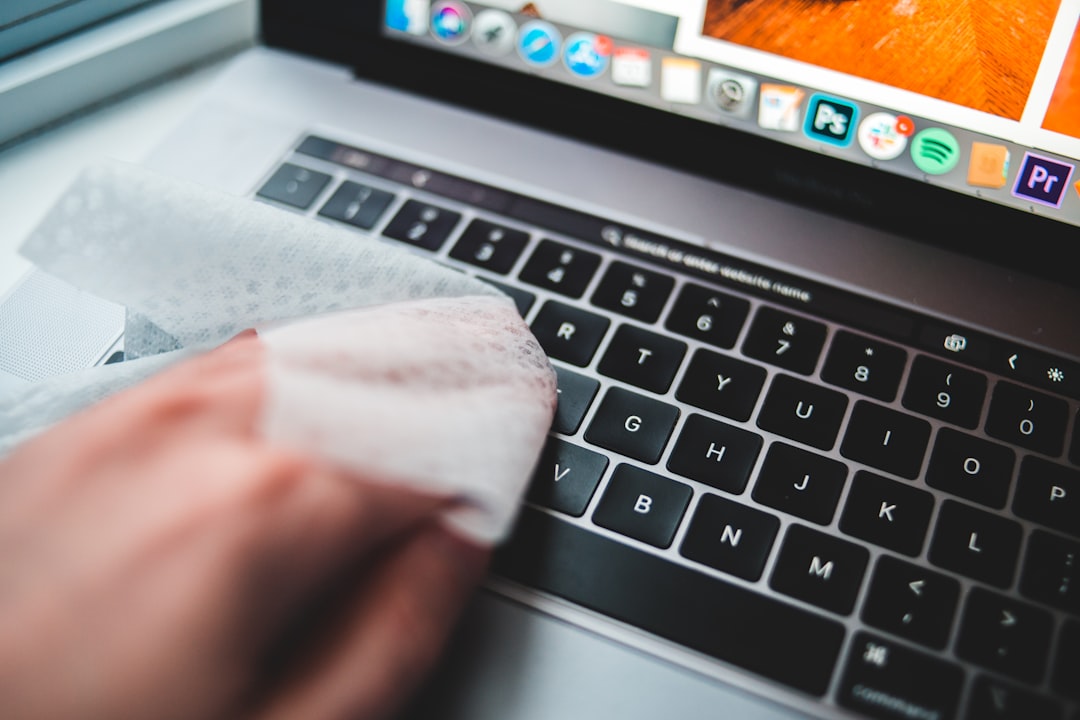
Sometimes the simplest method is the most overlooked. A microfiber cloth combined with strategic tilting can remove surface debris effectively.
Steps
- Turn off and unplug your Mac.
- Invert it gently and tap lightly on the base.
- Use a dry microfiber cloth to wipe the keys.
- Tilt at various angles while wiping.
This method won’t remove deeply embedded particles but works beautifully as a weekly maintenance habit.
Comparison Chart: Which Method Is Right for You?
| Method | Best For | Cost | Ease of Use | Risk Level |
|---|---|---|---|---|
| Compressed Air | Fine dust and crumbs | Low | Very Easy | Very Low |
| Soft Brush | Stuck particles | Very Low | Easy | Very Low |
| Cleaning Gel | Sticky debris | Low to Moderate | Easy | Low (if high quality) |
| Mini Vacuum | Larger crumbs | Moderate | Easy | Low (device specific) |
| Microfiber & Tilt | Surface cleaning | Very Low | Very Easy | Minimal |
Methods You Should Avoid
Not all cleaning techniques are safe for Mac keyboards. Avoid these common mistakes:
- Using liquid cleaners directly on keys
- Inserting sharp objects under keys
- Removing keycaps without proper tools
- Using high-powered household vacuums
- Spraying compressed air too closely for too long
Mac keys are delicate and often use low-profile mechanisms that can be easily damaged.
How Often Should You Clean Your Keyboard?
The ideal cleaning frequency depends on usage, but here’s a general guide:
- Light users: Once every 2–4 weeks
- Daily office users: Weekly surface clean, monthly deep clean
- Frequent snackers or pet owners: Weekly deep clean
Regular light cleaning prevents the need for more aggressive interventions later.
Bonus Tips for Keeping Crumbs Away
Prevention is easier than removal. Consider adopting these small habits:
- Avoid eating directly above your keyboard
- Wash hands before extended typing sessions
- Use a thin keyboard cover if appropriate
- Keep your workspace dust-free
Even minor changes can significantly reduce buildup over time.
Final Thoughts
Cleaning your Mac keyboard doesn’t have to involve complicated disassembly or risky tools. In fact, the safest approach is often the simplest: gentle airflow, light brushing, controlled suction, or soft contact. By incorporating these five safe methods into your regular maintenance routine, you can extend the life of your keyboard, preserve typing performance, and maintain a cleaner workspace.
Your Mac is an investment—treating its keyboard with care ensures that every keystroke remains crisp, responsive, and satisfying. With just a few minutes of smart cleaning each week, you can keep dust and crumbs exactly where they belong: out of your keyboard.
