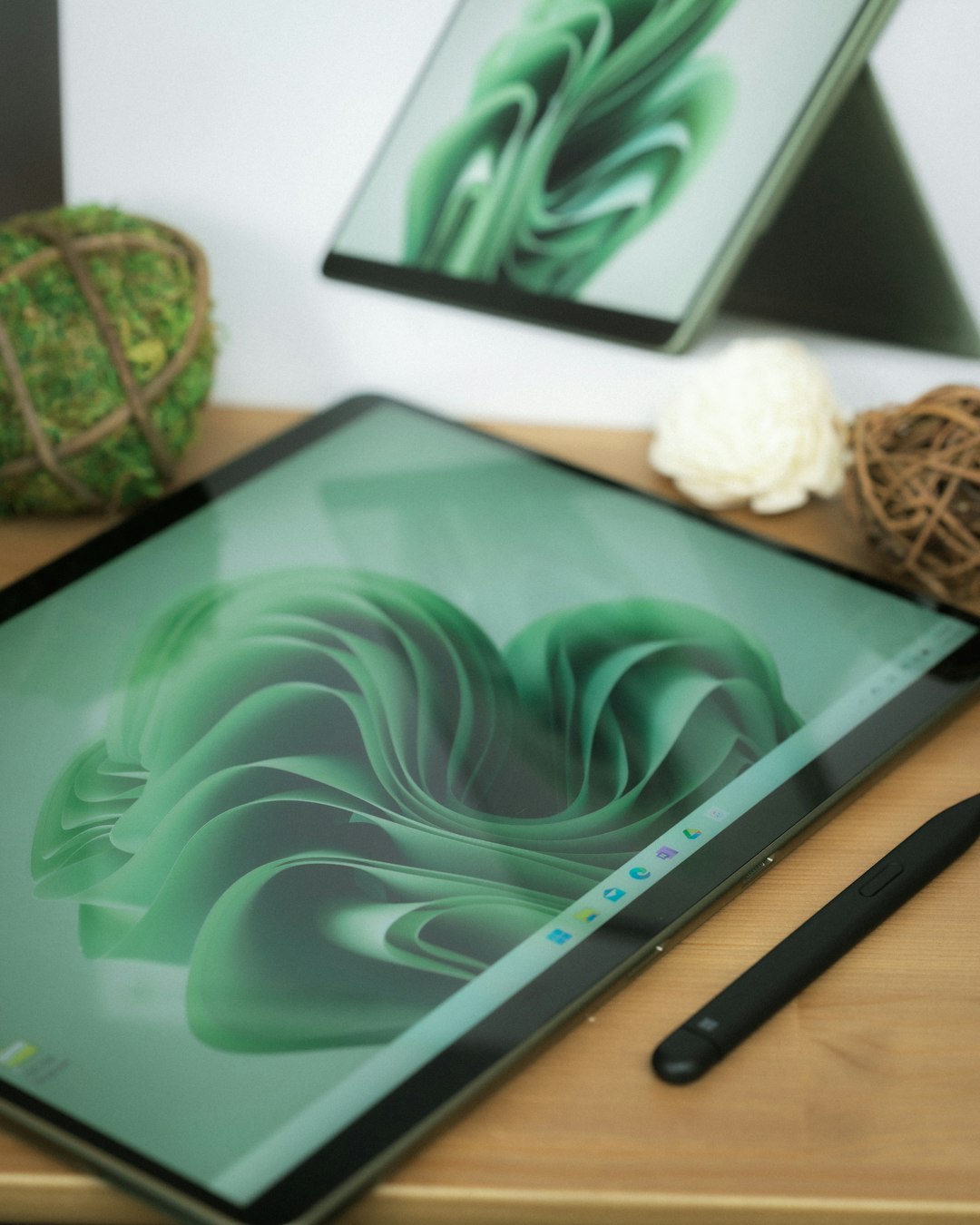
The Microsoft Surface Pro 4 has remained a popular device thanks to its sleek design, tablet-laptop hybrid form factor, and impressive productivity features. However, many users have reported a frustrating and persistent issue—screen glitching or scrambled graphics that make the device almost unusable. Whether it manifests as flickering, horizontal lines, ghosting images, or a completely garbled view, this screen issue has proven to be a major inconvenience.
TLDR
If your Surface Pro 4 screen is glitching or showing scrambled visuals, the issue might be related to overheating, outdated drivers, or even hardware failure. Microsoft doesn’t offer a universal fix, but there are several practical workarounds and long-term solutions users can try, including adjusting CPU settings, installing software updates, using external displays, or sending the device in for repair. This guide outlines all possible fixes to help restore your Surface Pro 4 to working condition. Keep reading for detailed instructions and options.
What Causes the Surface Pro 4 Screen Glitch Issue?
The root causes of the screen glitching problem on the Surface Pro 4 typically fall into one of the following categories:
- Overheating: Excessive device temperature can affect internal connections and lead to screen flickering or ghosting visuals.
- GPU Driver Issues: Outdated or incompatible Intel graphics drivers may cause screen corruption or erratic refresh rates.
- Hardware Fault: In some cases, the screen cable or display controller on the motherboard may be permanently damaged.
This issue has become common enough that a user-created website, “Flickergate.com,” was established to raise awareness and compile user experiences about the Surface Pro screen flickering phenomenon.
Working Fixes for Surface Pro 4 Screen Glitches
Luckily, there are both short-term workarounds and relatively permanent solutions depending on the underlying cause. Here are known working fixes:
1. Lower the CPU Maximum State (Thermal Workaround)
Since thermal overheating may play a role in the flickering problem, adjusting the CPU’s power output can help reduce internal heat and stabilize the screen.
- Search for Power Options in Windows and open it.
- Click Change plan settings for your active power plan.
- Select Change advanced power settings.
- Scroll down to Processor Power Management, then set Maximum processor state to 99% for both On battery and Plugged in.
This limits the CPU’s turbo boost capabilities, reducing heat, and in many cases, eliminates the screen glitch.
2. Connect to an External Monitor
If you’re working on something important and need an urgent workaround, try connecting your device to an external monitor via the Surface Dock or a Mini DisplayPort cable. The glitching typically affects only the built-in display and not external screens, so you may be able to continue work uninterrupted.
3. Install or Roll Back Intel Display Drivers
There have been reports of certain display drivers causing more problems than others. Try either updating or rolling back your Intel HD Graphics 520 driver:
To Update:
- Open Device Manager.
- Expand Display adapters and right-click Intel HD Graphics 520.
- Choose Update driver and search automatically for new drivers.
To Roll Back:
- Go to Device Manager > Display adapters.
- Right-click on Intel HD Graphics 520 and select Properties.
- Go to the Driver tab and click Roll Back Driver.
Some users found that using an older version of the Intel driver resolved their flickering issues.
4. Use ThrottleStop Utility
ThrottleStop is a third-party app originally designed for performance tuning and temperature throttling. It has become a popular workaround for Surface Pro 4 screen issues:
- Download the utility from a trusted source.
- Install and run ThrottleStop.
- Check the BD PROCHOT box — this disables a signal that causes the CPU to throttle as a reaction to high temperatures.
Many users report that this fixes or dramatically reduces the glitching problem without any performance downside.
5. Apply All Windows and Firmware Updates
Make sure that your Surface Pro 4 has the latest Windows patches, Surface firmware, and BIOS updates.
- Open Settings > Update & Security.
- Click on Check for Updates.
- Install all available updates, restart the device when prompted.
Microsoft occasionally includes graphics-related fixes in firmware updates which could help address the issue.
6. Use Screen Refresh Rate Manipulation
Some users claim that toggling the screen refresh rate helps reduce flickering. Though not a permanent fix, it can act as a temporary aid.
Go to:
- Settings > System > Display.
- Click on Advanced Display Settings.
- Find Refresh Rate and try switching between the available options (usually 30Hz or 60Hz).
7. Get Professional Repair or Replacement
If none of the above solutions work, the issue might be hardware-related. Microsoft had, in some cases, offered replacements for affected devices—even outside of the warranty period—but this isn’t guaranteed anymore. Consider contacting Microsoft support or a reputable third-party repair service.
Preventive Measures for the Future
While there is no guaranteed method to prevent the issue from reoccurring, you can lower the risk with the following habits:
- Use your Surface Pro 4 on a hard, flat surface to improve airflow.
- Avoid high-performance tasks without proper cooling periods.
- Keep your device and drivers regularly updated.
- Store the device in a cool, dry environment.
Frequently Asked Questions (FAQ)
- Q: What is Flickergate?
- A: Flickergate is a term coined by users for the screen flickering and glitching issue on Surface Pro 4 devices. It has gained attention due to the number of affected users and Microsoft’s limited response.
- Q: Is screen flickering covered under Microsoft warranty?
- A: If your device is under warranty, Microsoft may repair or replace it. However, if it isn’t, repairs might be costly. You may still contact Microsoft support to see if any exceptions apply.
- Q: Can using an external display solve the issue permanently?
- A: Using an external monitor does bypass the problem temporarily, but it doesn’t fix the internal screen. It’s a viable temporary solution for continued use.
- Q: Does the screen fix involve replacing the motherboard?
- A: In extreme hardware-affected cases, yes. The internal controller and screen connectors are sometimes the root cause, requiring motherboard or screen replacements.
- Q: Will reducing the CPU usage slow my device?
- A: Setting the CPU max state to 99% might slightly reduce peak performance but typically won’t impact everyday tasks like browsing or document editing.
Surface Pro 4 users experiencing screen glitches don’t need to toss their device just yet. With a bit of troubleshooting and the fixes listed above, it’s very possible to bring your tablet back to operational health without shelling out for a new machine.
