AirPods have become one of the most popular wireless earbuds in the world, loved for their seamless integration with Apple devices, portability, and sound quality. However, some users encounter a frustrating issue: the sound becomes muffled. This can hamper calls, music enjoyment, or even video watching experiences. Understanding the causes and solutions for muffled sound is essential for restoring the audio quality consumers expect from Apple’s premium product.
TL;DR
Experiencing muffled sound with your AirPods can be caused by dirt, software glitches, or Bluetooth interference. Start by cleaning your AirPods, updating firmware, and resetting Bluetooth connections. If those steps don’t work, consider checking audio balance settings and contacting Apple Support as a last resort. Proper maintenance and troubleshooting can usually restore clear audio performance.
Common Causes of Muffled AirPods Sound
Muffled audio from AirPods can be attributed to one or more common issues, ranging from physical blockages to internal software bugs. Here are the main culprits:
- Dirt or earwax buildup blocking the speaker grilles
- Bluetooth interference or unstable connections
- Outdated firmware or iOS compatibility issues
- Incorrect audio balance or EQ settings on the device
- Internal hardware defects or wear-and-tear
Step-by-Step Fixes for Muffled Sound
1. Clean the AirPods Thoroughly
The most common cause of muffled sound is dirt, dust, or earwax blocking the mesh of the AirPods. Cleaning them with care can quickly improve sound quality.
- Use a soft, dry, lint-free cloth to wipe down the AirPods.
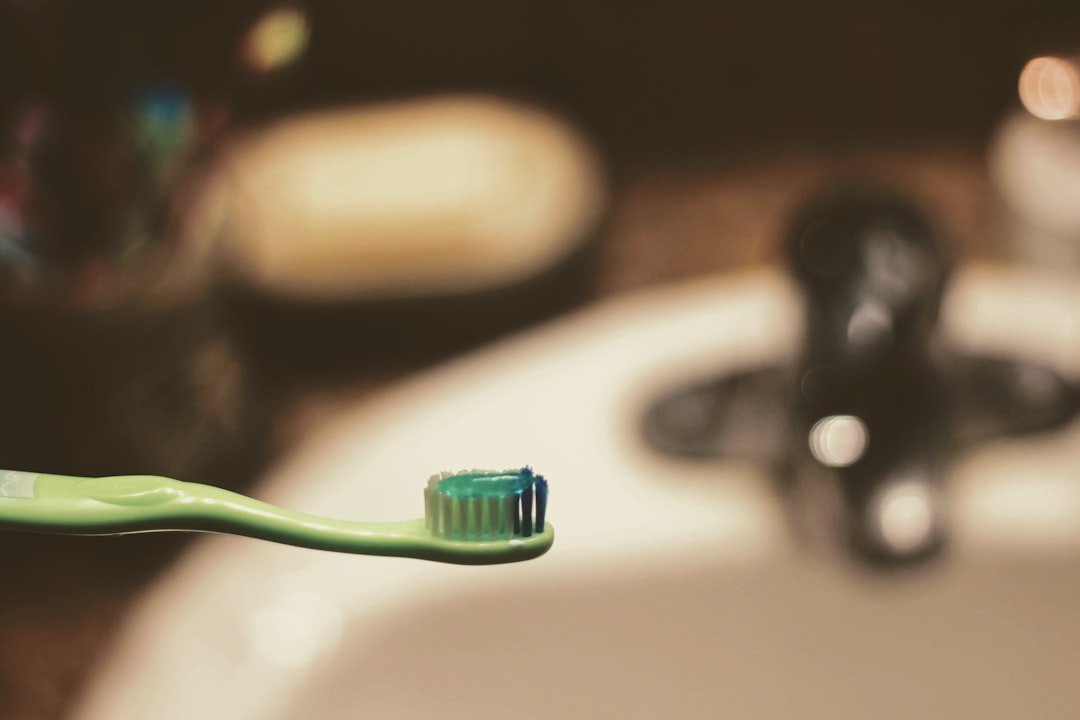
- Use a dry cotton swab or soft-bristled toothbrush to gently clean the speaker mesh.
- For stubborn debris, use a slightly dampened cloth with isopropyl alcohol—make sure not to get moisture inside the grills.
Note: Never use sharp objects, water, or compressed air to clean your AirPods.
2. Inspect Your Audio Source
Sometimes the problem isn’t with the AirPods themselves, but with the device they’re connected to. Poor audio quality from a smartphone or laptop can be misinterpreted as AirPods failure.
- Make sure you’re playing high-quality audio files.
- Test the AirPods with a different device to see if the issue persists.
- Make a voice call or record audio to assess microphone clarity as well.
3. Reset the Bluetooth Connection
If Bluetooth pairing was unsuccessful or disrupted, audio quality may drop. Resetting the Bluetooth connection can help restore proper function.
- On your iPhone or other device, go to Settings > Bluetooth.
- Tap the “i” icon next to your AirPods and choose Forget This Device.
- Place the AirPods in their case, close the lid, wait 30 seconds, then open it near your device.
- Reconnect the AirPods when prompted.
4. Update Firmware and iOS
Apple frequently releases firmware updates that address audio bugs and connectivity issues. Ensuring both your device and AirPods are up to date can solve audio distortion or muffling.
- Make sure your iPhone, Mac, or iPad is running the latest iOS or macOS version.
- For AirPods firmware updates, keep them in their charging case, connected to power, and near your device.
5. Disable EQ and Audio Modifications
Built-in equalizer settings and audio enhancements can sometimes modify or distort sound unintentionally.
To disable EQ on iPhone:
- Go to Settings > Music > EQ
- Select Off
Additionally, disable any third-party apps that modify sound output or noise suppression.
6. Reset AirPods to Factory Settings
If none of the above has worked, restoring your AirPods to default settings can solve deeper configuration issues.
- Put your AirPods in the charging case and keep the lid open.
- Press and hold the setup button on the back of the case for about 15 seconds until the light flashes amber, then white.
- Reconnect your AirPods to your device as if they were brand new.
7. Check the AirPods Audio Balance
Muffled sound in one ear? You might have unbalanced audio settings causing uneven or unclear output.
To adjust on iPhone:
- Go to Settings > Accessibility > Audio/Visual
- Ensure the balance slider is centered between left and right
8. Avoid Wireless Interference
Bluetooth operates in the 2.4 GHz range, alongside many other devices like Wi-Fi routers and microwaves. Being too close to other electronics can cause signal degradation.
- Keep AirPods and connected devices away from potential interference sources.
- Try moving to a different room or location to test if audio improves.
9. Replace the Ear Tips (AirPods Pro Only)
If you use AirPods Pro, worn-out or poorly-fitting ear tips can result in muffled sound and weak bass.
- Inspect the silicone tips for tears or blockage.
- Replace them with new ones or try a different size for better fit and seal.
- Run the Ear Tip Fit Test in Bluetooth settings to optimize the fit.
10. Contact Apple Support
If none of the above methods resolve the muffled sound, the issue may be hardware-related. AirPods that are under warranty or AppleCare+ may be eligible for repair or replacement.
- Visit the Apple Support website and follow the prompts to initiate a service request.
- Schedule a Genius Bar appointment if nearby an Apple Store.
Preventing Future Sound Issues
Prevention is just as important as fixing current problems. Here are ways to avoid muffled sound in the future:
- Clean AirPods regularly to prevent debris buildup.
- Store them in their case when not in use to reduce exposure to dust and impact.
- Update your devices frequently to maintain compatibility.
- Avoid using AirPods near powerful wireless signal emitters like routers or microwaves.
FAQ
Why does my AirPods sound muffled all of a sudden?
This is often caused by dirt, earwax, or moisture clogging the speaker grills. It can also stem from software glitches or low-quality Bluetooth connections.
How often should I clean my AirPods?
Ideally, you should inspect and clean your AirPods weekly, especially if you use them during workouts or in dusty environments.
Can firmware updates really make a difference?
Yes, Apple firmware updates often include bug fixes and improvements to connectivity and audio performance. Keeping them current may resolve muffled sound problems.
I only hear muffled sound in one AirPod. What’s wrong?
This usually points to debris in just one speaker or an audio balance issue. Clean both AirPods and check the balance slider in settings.
Do AirPods go bad over time?
Like all electronics, AirPods degrade with use. Battery life and speaker quality may decline after a few years, which can cause sound issues that can’t be fixed with software troubleshooting alone.
Will Apple replace muffled AirPods under warranty?
If the issue is due to a manufacturing defect and the AirPods are still under warranty or AppleCare+, Apple may offer a free replacement.
By following these steps, users can restore the clean, crisp sound that makes AirPods so popular and avoid muffled audio going forward.
