Few things are more annoying than sitting down to watch your favorite video… and getting hit with Error Code 232011. The screen goes blank. The video refuses to load. And you are left wondering what went wrong. Don’t worry. This error is common. And the good news? It’s usually easy to fix.
TL;DR: Error Code 232011 usually happens because of browser issues, bad internet connections, corrupted cache, or blocked media files. Start by refreshing the page and checking your internet. Then clear your cache, disable extensions, or try another browser. In most cases, one of the quick fixes below will solve the problem in minutes.
Let’s break it down in simple terms and get your videos playing again.
What Is Error Code 232011?
Error Code 232011 is a video playback error. It often appears when streaming videos on websites using embedded players. It can show up on Chrome, Firefox, Edge, or other browsers.
Usually, it means:
- The video file cannot be loaded.
- Your browser is blocking something.
- Your internet connection is unstable.
- There’s corrupted browser data.
Think of it as a communication problem. The video wants to play. Your browser wants to show it. But something interrupts the conversation.

7 Quick Solutions to Fix Error Code 232011
1. Refresh the Page
Yes. Really. Start simple.
Sometimes the video fails to load properly the first time. A quick refresh can reset the connection.
- Click the refresh button.
- Or press F5 (Windows).
- Or press Cmd + R (Mac).
If the video plays, great. Problem solved in 2 seconds.
If not, move on.
2. Check Your Internet Connection
Streaming needs stable internet. Even a small drop in speed can trigger playback errors.
Here’s what to do:
- Run a speed test.
- Restart your router.
- Switch from Wi-Fi to wired connection.
- Move closer to your router.
If your internet is slow or unstable, that may be the root cause.
Tip: Streaming HD videos requires stronger bandwidth than you think.
3. Clear Browser Cache and Cookies
Your browser stores temporary files to load websites faster. But sometimes those files become corrupted.
When that happens, videos may fail to load.
To fix it:
- Open browser settings.
- Go to Privacy or History.
- Click Clear browsing data.
- Select Cached images and files.
- Restart your browser.
This is one of the most effective fixes.
4. Disable Browser Extensions
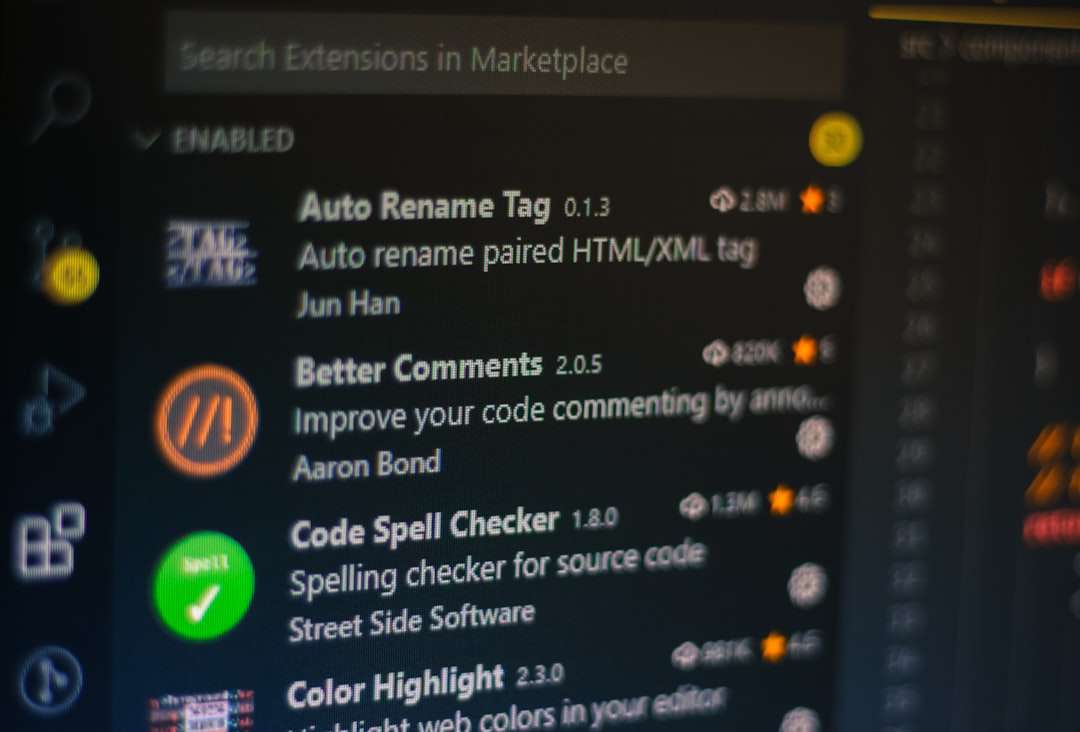
Extensions are helpful. But they can also interfere with video playback.
Common troublemakers include:
- Ad blockers
- Privacy blockers
- VPN extensions
- Security add-ons
Try this:
- Open your extensions page.
- Disable them one by one.
- Reload the video after each one.
If the video works after disabling a specific extension, you found the culprit.
5. Try a Different Browser
Sometimes the issue is browser-specific.
If you are using Chrome, try Firefox. If you are on Edge, try Chrome.
Different browsers handle video formats slightly differently.
Here’s a quick comparison:
| Browser | Best For | Video Compatibility | Ease of Fixing Error 232011 |
|---|---|---|---|
| Google Chrome | General use | Excellent | Easy clearing cache and extensions |
| Mozilla Firefox | Privacy focused users | Very Good | Simple media settings adjustments |
| Microsoft Edge | Windows users | Excellent | Built in repair options |
| Safari | Mac users | Very Good | Limited extension conflicts |
Switching browsers takes 2 minutes. It’s worth a try.
6. Disable VPN or Proxy
VPNs are great for privacy. But they can cause streaming issues.
Some video hosting services block VPN traffic. Others struggle with slower routed connections.
To test this:
- Turn off your VPN.
- Reload the video.
If the video works instantly, your VPN was interfering.
You can also try switching to a different server location.
7. Update Your Browser
Outdated browsers cause problems. Period.
Video players are constantly updated. Old browsers may not support new codecs or scripts.
To update:
- Open browser settings.
- Click About.
- Install any available updates.
- Restart the browser.
Always keep your browser updated for smooth streaming.
Bonus Fixes If Nothing Works
Still stuck? Try these extra steps.
Flush Your DNS
This refreshes your connection to websites.
On Windows:
- Open Command Prompt.
- Type: ipconfig /flushdns
- Press Enter.
On Mac:
- Open Terminal.
- Type: sudo dscacheutil -flushcache
- Press Enter.
It sounds technical. But it’s quick.
Check Firewall or Security Software
Sometimes security programs block media files.
Temporarily disable your firewall and test the video.
If it works, adjust your firewall settings instead of leaving it off.
Contact the Website
If the issue happens on only one website, the problem might be on their end.
In that case:
- Wait a few hours.
- Try again later.
- Report the issue if it continues.
Why Does Error Code 232011 Happen in the First Place?
Let’s simplify it.
Video streaming involves several moving parts:
- Your device
- Your browser
- Your internet connection
- The video server
If any one of these misfires, playback can fail.
Most commonly, the issue is local. That means it’s something on your device. Not the website.
And that’s good news. Because you can fix local issues.
How to Prevent This Error in the Future
Prevention is easier than fixing.
Here are simple habits to avoid seeing Error 232011 again:
- Keep your browser updated.
- Clear cache once a month.
- Avoid installing too many extensions.
- Use reliable internet.
- Restart your router occasionally.
Small maintenance goes a long way.
Final Thoughts
Error Code 232011 looks scary at first. But it’s rarely serious.
Most of the time, the fix is simple. A refresh. A cache clear. A browser switch.
You don’t need advanced tech skills. Just follow the steps one by one.
Start simple. Test after each fix. And you’ll likely solve the problem in under 10 minutes.
Now go ahead. Reload that video. Your binge session is waiting.
