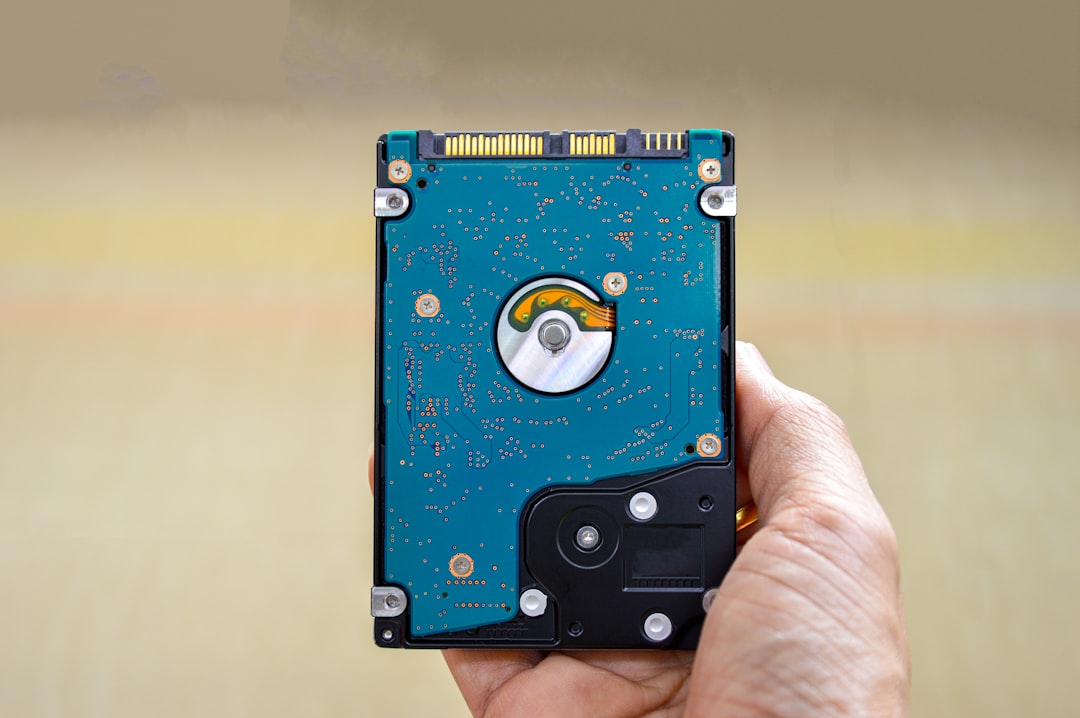
Disk cloning software has become an essential safety net in the modern digital environment, where personal files, professional data, applications, and operating systems are deeply intertwined with daily productivity. Tools like Macrium Reflect have set high standards for reliability, flexibility, and performance in drive backup and cloning. Whether upgrading to a faster SSD, preparing for disaster recovery, or maintaining a full system image, disk cloning software provides users with a dependable way to duplicate and protect their storage drives.
TLDR: Disk cloning software such as Macrium Reflect allows users to create exact copies of their hard drives or solid-state drives for backup, recovery, or migration purposes. It ensures that operating systems, applications, and files remain intact and bootable on a new or restored drive. These tools are critical for disaster recovery, hardware upgrades, and data protection strategies. Choosing the right cloning solution depends on features like imaging capabilities, scheduling, encryption, and ease of use.
What Is Disk Cloning Software?
Disk cloning software creates a sector-by-sector copy of a storage device, ensuring that every piece of data—including the operating system, installed programs, configurations, and hidden system files—is duplicated precisely. Unlike simple file copying, cloning preserves the structure and bootability of a drive.
This process enables users to:
- Upgrade from HDD to SSD without reinstalling Windows or applications
- Create full system backups
- Prepare disaster recovery solutions
- Deploy identical system setups across multiple machines
Software like Macrium Reflect also supports disk imaging, which differs slightly from cloning. While cloning creates a direct copy onto another drive, imaging stores a compressed snapshot file that can later be restored when needed.
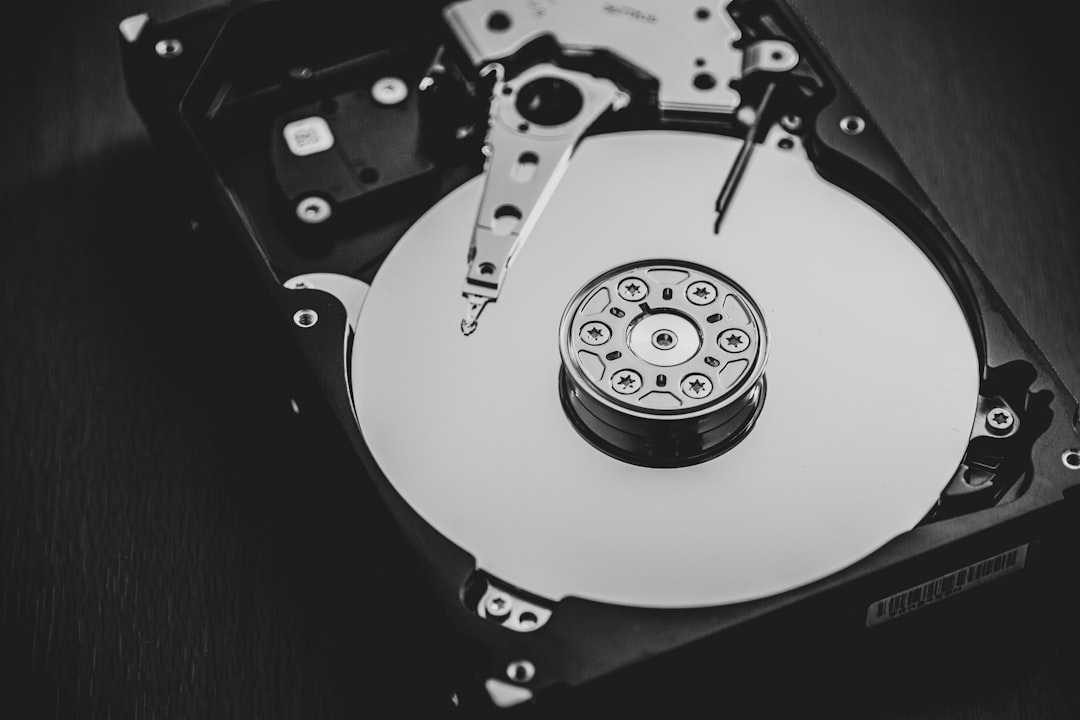
Why Macrium Reflect Is Often Used as a Benchmark
Macrium Reflect has built a strong reputation due to its combination of reliability, performance, and detailed configuration options. It is widely regarded in both home and professional IT environments.
Key features that make this category of software stand out include:
- Rapid Delta Cloning: Copies only changed data blocks during updates
- Rapid Delta Restore: Speeds up recovery by restoring modified data only
- Bootable Rescue Media: Allows system restoration even if the OS fails
- Encryption Options: Protects backup images from unauthorized access
- Flexible Scheduling: Automates regular backups
These capabilities demonstrate what users should expect from quality disk cloning software. Even when evaluating alternatives, this feature set serves as a reliable checklist.
Disk Cloning vs. Disk Imaging
Understanding the difference between cloning and imaging helps users choose the right approach.
Disk Cloning:
- Creates an immediate, usable copy of a drive
- Requires a second drive of equal or larger capacity
- Ideal for direct hardware upgrades
Disk Imaging:
- Stores backup as compressed image files
- Can save multiple versions (incremental backups)
- More storage-efficient and flexible
For example, upgrading to a larger SSD typically requires cloning. In contrast, long-term data protection usually benefits more from scheduled image backups.
Common Use Cases for Drive Cloning Software
1. SSD Upgrades
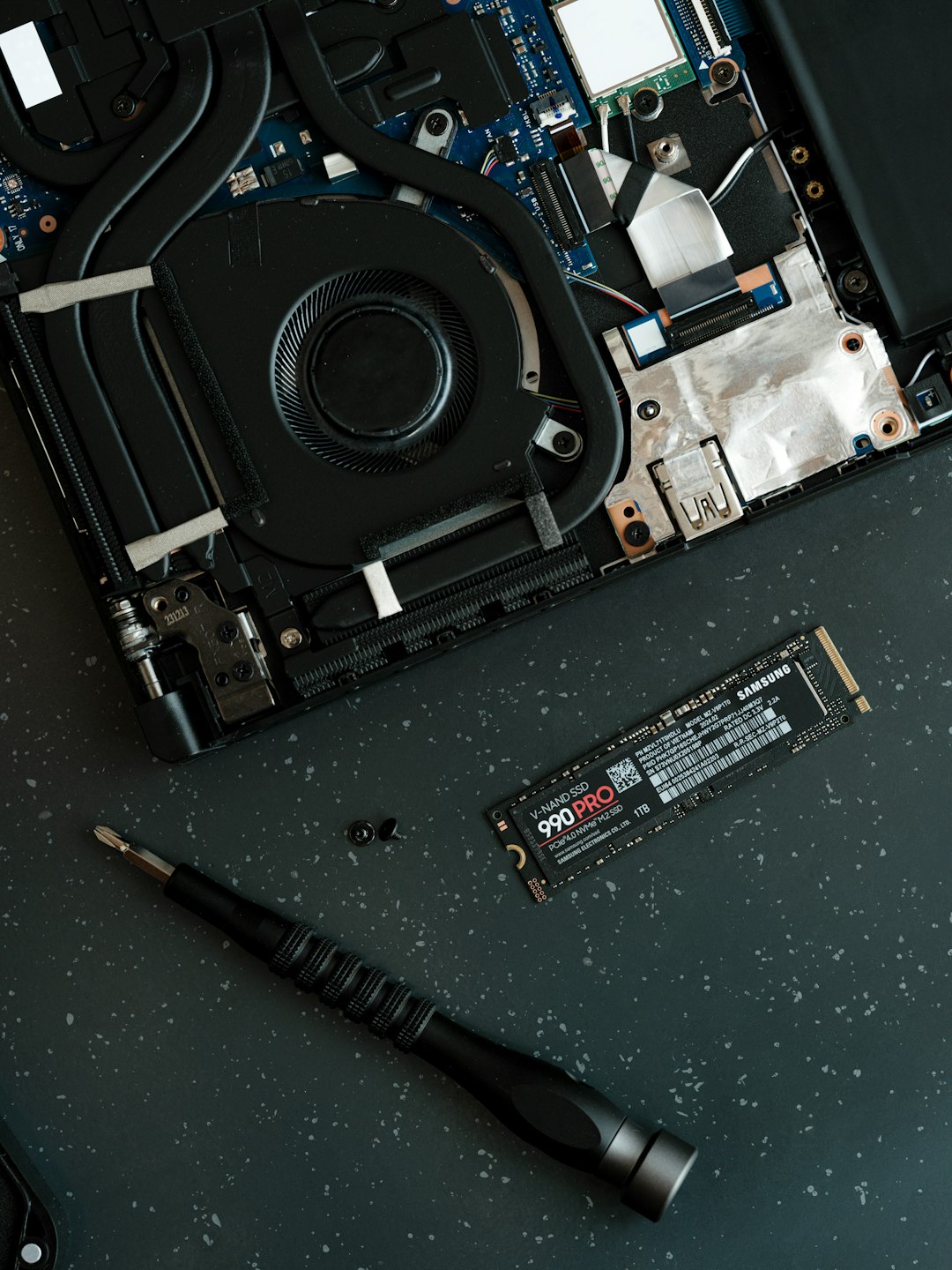
Switching from a traditional hard disk drive (HDD) to a solid-state drive (SSD) significantly improves system performance. Disk cloning software allows users to migrate their complete system without reinstalling Windows, reactivating licenses, or reconfiguring applications.
2. Disaster Recovery Planning
Hardware failure can occur unexpectedly. A cloned backup drive or system image ensures minimal downtime. Businesses often maintain off-site images for enhanced protection against theft, fire, or ransomware attacks.
3. System Deployment
IT departments use cloning tools to deploy standardized operating systems across multiple computers. Instead of installing each machine individually, one master image is duplicated efficiently.
4. Data Preservation Before Risky Changes
Before partitioning drives, updating operating systems, or installing experimental software, creating a clone ensures users can quickly revert to a stable state.
Important Features to Look for in Cloning Software
While Macrium Reflect sets a high standard, several alternatives provide competitive functionality. When selecting a tool, users should evaluate the following:
- User Interface: Is it intuitive for beginners?
- Backup Types: Full, incremental, and differential support
- Speed and Performance: Efficient sector copying methods
- Compatibility: Support for Windows versions and file systems
- UEFI and GPT Support: Essential for modern systems
- Scheduling and Automation: Enables “set it and forget it” backups
- Compression and Encryption: Saves space and enhances security
- Technical Support: Reliable help when needed
Home users may prioritize simplicity and affordability, while enterprise users often require network deployment capabilities and centralized management options.
Security Considerations
Disk cloning software plays a vital role in cybersecurity strategy. Backups are the primary defense against ransomware attacks. Without a reliable backup image, victims often face irreversible data loss.
Best security practices include:
- Maintaining offline backups disconnected from the main system
- Using encryption for sensitive information
- Testing recovery procedures regularly
- Keeping multiple backup generations
A backup is only effective if it can be restored. Routine testing ensures confidence and minimizes surprises during emergencies.
Performance and Storage Efficiency
Modern cloning tools use intelligent sector copying, meaning they skip unused sectors and reduce transfer time. Compression features allow image files to occupy significantly less storage space compared to raw disk size.
Incremental and differential backup methods further enhance efficiency:
- Incremental: Saves changes since the last backup
- Differential: Saves changes since the last full backup
This layered approach minimizes storage use while preserving multiple restore points.
Limitations to Consider
Despite their strengths, disk cloning tools are not without constraints.
- Storage Requirements: Clones require equal or larger drives
- Hardware Differences: Large system changes may affect bootability
- Learning Curve: Advanced features can be complex
- Cost: Professional editions may require paid licenses
Users should evaluate their technical comfort level before selecting high-end enterprise solutions.
Best Practices for Using Disk Cloning Software
To maximize reliability and longevity of backups, users should adopt structured procedures:
- Create a full system image before major updates.
- Schedule weekly or monthly backups depending on data activity.
- Store backups on external drives or network storage devices.
- Label and organize backup images clearly.
- Verify image integrity after creation.
These best practices transform disk cloning from a one-time action into a consistent, dependable safety system.
Conclusion
Disk cloning software like Macrium Reflect plays a critical role in safeguarding digital environments. Whether for home users upgrading hardware or enterprise IT teams managing fleets of devices, cloning tools provide a practical solution for full-system backup and recovery. Their ability to replicate entire drives, preserve boot configurations, and restore systems quickly makes them indispensable in modern computing.
As data continues to grow in importance, proactive backup strategies are no longer optional—they are fundamental. Investing in dependable disk cloning software ensures continuity, minimizes downtime, and protects valuable information against unforeseen events.
FAQ
1. Is disk cloning the same as copying files?
No. Disk cloning copies every sector of a drive, including system files and boot records, while file copying transfers only selected files and folders.
2. Can a cloned drive boot immediately?
Yes, if the cloning process is completed correctly and the hardware is compatible, the cloned drive should boot just like the original.
3. How often should system images be created?
This depends on usage. For active systems, weekly incremental backups and monthly full images are common practices.
4. Does cloning erase the target drive?
Yes. The cloning process typically overwrites all existing data on the destination drive.
5. Can disk cloning protect against ransomware?
Yes, especially when backups are stored offline or disconnected. Recovery from a clean image can restore systems after an attack.
6. Is free disk cloning software sufficient?
For basic home use, free versions may be adequate. However, businesses or advanced users often benefit from paid editions with added features like encryption and rapid delta restore.
