
Shooting clean, polished footage is not always possible. Low light, small camera sensors, high ISO settings, underexposed Log footage, and aggressive color grades can all create visible noise. Fortunately, DaVinci Resolve has some of the best built-in video denoising tools available in an editing and color grading application, especially in the Studio version. The key is knowing which settings to use, when to use them, and how to avoid making your footage look soft, plastic, or overprocessed.
TLDR: For the cleanest results, start with Temporal Noise Reduction before Spatial Noise Reduction, using 2 or 3 frames and a low-to-medium motion estimation setting. Add Spatial Noise Reduction only if needed, keeping the strength conservative to preserve detail. Denoise early in the node tree, before heavy grading, sharpening, or film grain. The best DaVinci Resolve denoise settings depend on your footage, but subtle adjustments almost always look better than aggressive noise removal.
Why Noise Happens in Video
Video noise appears as random speckles, color blotches, crawling texture, or flickering grain across an image. It is most visible in shadows, flat walls, skies, dark clothing, and underexposed areas. Noise becomes especially obvious when you push exposure, lift shadows, increase saturation, or apply a strong contrast grade.
There are two main types of noise you will usually see:
- Luma noise: Grain-like brightness variation, often seen as fine black and white speckles.
- Chroma noise: Colored blotches or dancing pixels, especially in shadows and skin tones.
DaVinci Resolve gives you tools to reduce both, but the goal is not to remove every bit of texture. The goal is to make the image look cleaner while still natural.

Where to Find Denoise Settings in DaVinci Resolve
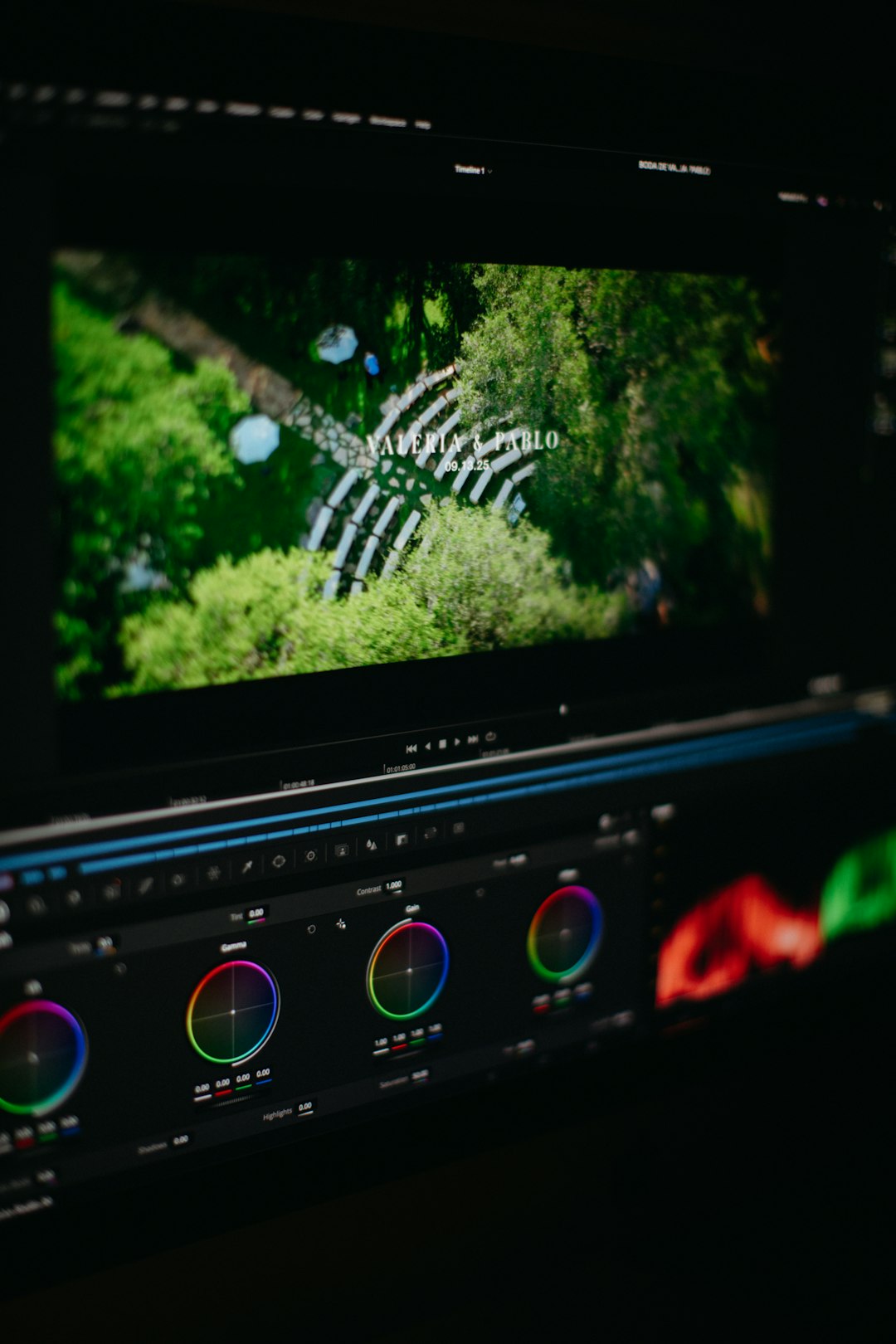
The main denoise controls are found on the Color page. Select a clip, open the Motion Effects panel, and you will see controls for Temporal Noise Reduction and Spatial Noise Reduction. These tools are available in DaVinci Resolve Studio, not the free version.
Temporal noise reduction analyzes changes across multiple frames. Spatial noise reduction analyzes noise within a single frame. In most cases, temporal denoise should come first because it can remove noise while preserving more detail. Spatial denoise is useful as a finishing step when some noise remains.
The Best Starting Settings for Clean Video
If you are looking for a practical starting point, try these settings first:
- Temporal NR Frames: 2 or 3
- Motion Estimation Type: Faster or Better
- Motion Range: Small or Medium
- Luma Threshold: 5 to 15
- Chroma Threshold: 10 to 25
- Blend: 0 to 20
- Spatial NR Mode: Better
- Spatial Radius: Small or Medium
- Spatial Luma: 5 to 10
- Spatial Chroma: 10 to 20
These are not universal magic numbers, but they are a safe baseline. If your image is only slightly noisy, keep the values low. If you are working with very noisy high ISO footage, you can push them higher, but do so carefully.
Temporal Noise Reduction: The Most Important Tool
Temporal Noise Reduction is usually the best first step because video noise changes randomly from frame to frame, while real image detail remains more consistent. Resolve compares several frames and tries to separate noise from actual motion.
The Frames setting controls how many neighboring frames Resolve analyzes. A setting of 2 frames is usually safe for handheld footage, interviews, and general editing. 3 frames can produce cleaner results, but may cause ghosting around fast motion. Higher values can be effective for locked-off shots, but they are more likely to create artifacts.
Motion Estimation determines how carefully Resolve tracks movement. Faster is good for performance and simple footage. Better gives stronger results and is a good default for final exports. Enhanced Better, when available, can help with difficult shots but may slow playback significantly.
Motion Range should match the amount of movement in the shot. Use Small for interviews, product shots, and tripod footage. Use Medium for handheld clips or modest camera movement. Use Large only when there is significant movement, and check carefully for artifacts.
Luma vs Chroma Denoising
One of the most useful things about Resolve’s denoise tools is that you can treat brightness noise and color noise separately. In many cameras, chroma noise looks worse than luma noise, especially in shadows. This means you can often push chroma noise reduction higher while leaving luma noise reduction lower to preserve texture.
A common approach is:
- Use lower luma values to keep skin, fabric, hair, and fine detail sharp.
- Use higher chroma values to remove ugly red, green, and blue blotches.
- Increase slowly while viewing the image at 100% zoom.
For example, if a clip has colorful shadow noise but decent detail, try a Temporal Luma Threshold of 8 and a Temporal Chroma Threshold of 20. This often cleans up the image without making it look smeared.
Spatial Noise Reduction: Use It Gently
Spatial Noise Reduction works within each individual frame. It can be very effective, but it can also soften the image quickly. Think of it as a polishing tool rather than the main solution.
Use Spatial NR after Temporal NR if the image still has visible grain or chroma speckles. Start with Mode: Better, Radius: Small, and conservative luma and chroma values. If the footage is extremely noisy, increase the radius to Medium, but watch fine details such as eyelashes, hair, grass, text, and fabric texture.
A useful rule is: if the viewer notices the denoising, it is too strong. Clean video should still have some natural texture. Perfectly smooth shadows can look artificial, especially in cinematic footage.
Best Node Placement for Denoising
In the Color page, the placement of your noise reduction node matters. A good workflow is to place denoising early in the node tree, usually as the first or second node. This allows Resolve to clean the original signal before you increase contrast, saturation, or sharpness.
A simple node structure might look like this:
- Node 1: Noise reduction
- Node 2: Exposure and white balance correction
- Node 3: Contrast and color grade
- Node 4: Skin adjustments or secondary corrections
- Node 5: Sharpening, glow, grain, or finishing effects
There are exceptions. If the clip is severely underexposed, a small exposure correction before denoising may help you see the noise more clearly. However, for most footage, denoising before the creative grade produces the cleanest and most predictable result.
Recommended Settings by Footage Type
Different footage needs different denoise settings. Here are practical starting points for common situations.
Low Light Interview Footage
- Temporal Frames: 2
- Motion Range: Small
- Luma: 6 to 12
- Chroma: 15 to 25
- Spatial NR: Light, only if needed
Interviews often have limited motion, so temporal denoise works well. Be careful not to over-smooth skin. A little texture is better than a waxy face.
Handheld Wedding or Event Footage
- Temporal Frames: 2
- Motion Range: Medium
- Luma: 8 to 15
- Chroma: 18 to 30
- Spatial Radius: Small
Event footage often has camera movement, mixed lighting, and high ISO noise. Avoid using too many temporal frames, because dancing, walking, and handheld motion can create ghosting.
Static Product or Tripod Shots
- Temporal Frames: 3 to 5
- Motion Range: Small
- Luma: 5 to 12
- Chroma: 10 to 20
- Spatial NR: Low to medium
With minimal movement, you can use stronger temporal denoising. This is ideal for product videos, talking head setups, studio footage, and locked-off b-roll.
How to Avoid the Plastic Look
The biggest mistake in denoising is going too far. Heavy noise reduction can make faces look airbrushed, backgrounds look mushy, and motion look strange. If your footage starts losing detail, reduce the luma threshold first. If colored noise remains, keep chroma reduction higher but avoid pushing luma too much.
Another good technique is to add a tiny amount of film grain after denoising. This may sound counterintuitive, but subtle grain can restore natural texture and prevent the image from looking digitally scrubbed. The trick is to use very fine grain at low strength.

Performance Tips for Faster Editing
Noise reduction is processor-intensive, especially at 4K or higher resolutions. If playback becomes slow, do not panic. This is normal. Use Resolve’s performance tools to keep your workflow smooth.
- Disable denoise nodes while editing and enable them before export.
- Use Render Cache for clips with heavy noise reduction.
- Generate optimized media or proxies for smoother timeline playback.
- Apply denoise after picture lock so you are not processing clips you may delete.
- Use Better or Enhanced settings for final render, not necessarily during editing.
Should You Sharpen After Denoising?
Yes, but carefully. Denoising can slightly soften footage, so a small amount of sharpening can help restore clarity. However, sharpening also brings back noise if applied too aggressively. Place sharpening after denoising and after your main grade, then use a subtle amount.
For many clips, the best approach is mild denoise plus mild sharpening. This keeps the image clean without making edges look harsh. If you plan to add film grain, apply it after sharpening so the grain sits naturally on top of the finished image.
Final Thoughts
The best DaVinci Resolve denoise settings are not about maxing out every slider. They are about balancing cleanliness, detail, motion, and natural texture. Start with Temporal Noise Reduction, keep luma settings conservative, use stronger chroma reduction when needed, and add Spatial Noise Reduction only as a gentle finishing step.
Most importantly, judge your image in motion, not just on a paused frame. Noise, ghosting, and softness all behave differently during playback. With a careful node setup and subtle settings, DaVinci Resolve can transform noisy footage into clean, professional-looking video while preserving the character of the original shot.
