Online stores can look like twins at a costume party. One may be built on Shopify. Another may be built on WooCommerce, Magento, BigCommerce, or something custom. So how do you tell which is which? You look for clues. Tiny clues. Loud clues. Sneaky clues. This guide makes Shopify detection simple, fun, and useful.
TLDR: You can detect Shopify stores by checking page source, URL patterns, CDN files, checkout pages, scripts, headers, and technology lookup tools. The fastest method is to look for clear signs like cdn.shopify.com, /cart, /products/, and Shopify theme scripts. Some stores hide these signs, so use more than one method. Always be ethical, calm, and non creepy.
Why Detect Shopify Stores?
There are many good reasons to identify Shopify stores. Maybe you are doing market research. Maybe you are studying ecommerce design. Maybe you sell apps, themes, or services. Maybe you are just curious.
Shopify powers millions of online stores. It is popular because it is clean, fast, and easy to manage. It also leaves little footprints around the web. If you know where to look, those footprints are easy to spot.
Think of it like detective work. You have a magnifying glass. The website is the mystery mansion. The source code is the dusty basement. The checkout button is the secret door.

1. Check the Page Source
This is the classic method. It is simple. It is free. It feels a bit like opening the hood of a car.
Right click on a page. Choose View Page Source. Then search for Shopify clues.
Look for terms like:
- Shopify
- cdn.shopify.com
- shopifycdn.net
- Shopify.theme
- ShopifyAnalytics
- Shopify.routes
If you see these, you probably found a Shopify store. Not always. But often.
Some stores use custom setups. Some use headless builds. Some hide obvious code. So do not stop here. A good detective checks more than one clue.
2. Look for Shopify URL Patterns
Shopify loves certain URL paths. These paths are common across many Shopify stores. They are like street signs in a familiar town.
Try visiting or checking links like:
- /products/
- /collections/
- /cart
- /checkout
- /account
- /policies/
A Shopify product page often looks like this:
example.com/products/cool-blue-sneakers
A collection page often looks like this:
example.com/collections/new-arrivals
These paths are not proof on their own. Other platforms can copy them. A custom site can use the same structure. But if the paths match and other Shopify signs appear, the case gets stronger.
3. Check the Cart Page
The cart is a big clue. Shopify stores often use a standard cart path:
/cart
Try adding a product to the cart. Then look at the cart page. You may see Shopify style behavior. You may see links or scripts that point to Shopify systems.
Some stores use a cart drawer. It slides out from the side. Fancy. Smooth. Very common on Shopify themes.
Also check cart links in the site code. Search the source for cart.js or /cart/add.js. Shopify uses AJAX cart endpoints like these:
- /cart.js
- /cart/add.js
- /cart/change.js
- /cart/update.js
These are strong Shopify clues. If they respond like Shopify endpoints, you are getting warmer.
4. Follow the CDN Trail
A CDN is a content delivery network. That sounds fancy. It really means files are loaded from fast servers around the world.
Shopify often serves images, theme files, scripts, and styles through domains like:
- cdn.shopify.com
- shopifycdn.net
- cdn.shopifycdn.net
Open the page source. Search for cdn.shopify. If you see it, smile. That is one of the best clues.
You may also see file paths that include:
- /s/files/
- /t/
- assets/
- theme.css
- theme.js
Shopify image URLs can be very recognizable. They may include product photos, collection banners, and theme assets. When many assets come from Shopify domains, the store is very likely built on Shopify.
5. Search for Shopify JavaScript Objects
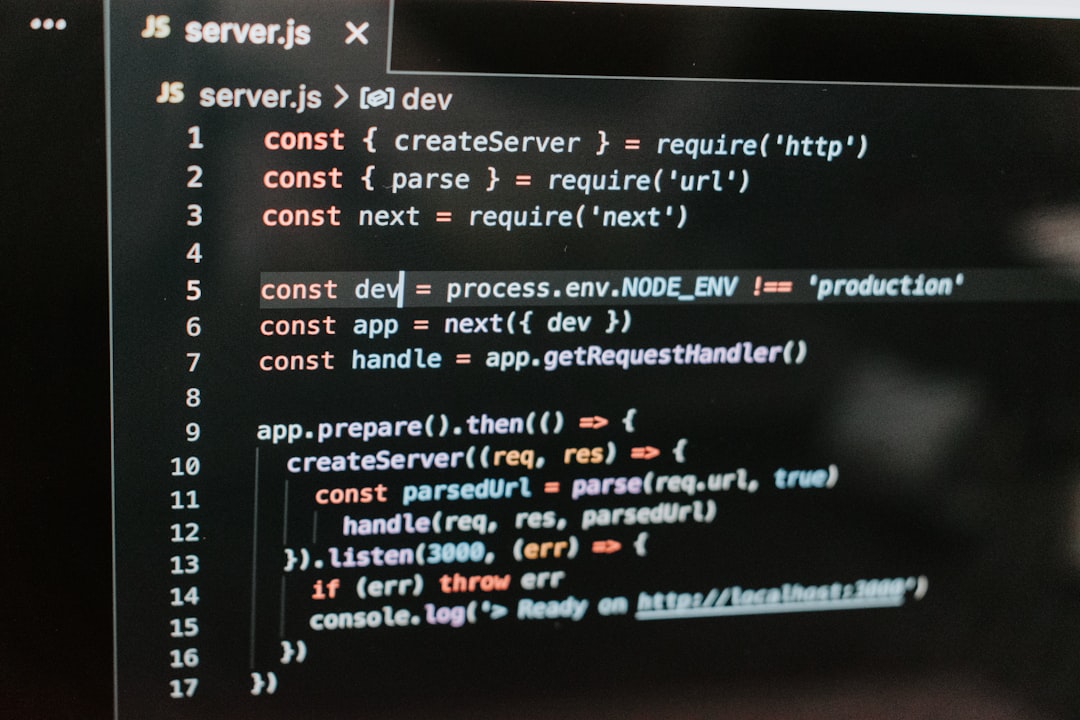
Modern ecommerce stores use lots of JavaScript. Shopify stores often include JavaScript objects that name Shopify directly.
Open your browser developer tools. Go to the console. You can inspect page scripts. You can also use the source search.
Look for:
- window.Shopify
- Shopify.currency
- Shopify.country
- Shopify.locale
- ShopifyAnalytics
- Shopify.designMode
These are useful signs. They often appear in Shopify themes, apps, and analytics code.
Be careful, though. A site may mention Shopify in a blog post. It may compare platforms. It may sell things for Shopify store owners. So make sure the term is part of the actual site code, not just normal page text.
6. Use Technology Detection Tools
Tools can save time. They scan sites and report technologies. They are like metal detectors for website platforms.
Popular technology lookup tools include:
- Wappalyzer
- BuiltWith
- WhatRuns
- SimilarTech
- Commerce Inspector style tools
These tools can often detect Shopify quickly. Some show extra details too. They may find apps, analytics tools, payment providers, themes, and scripts.
But tools are not magic. They can be wrong. They can miss headless stores. They can show old data. Use them as a shortcut, not as the final answer.
7. Inspect HTTP Headers
HTTP headers are small messages sent between a website and your browser. They are boring at first. Then they become useful.
You can inspect headers with browser developer tools. Open the Network tab. Reload the page. Click the main document request. Check the response headers.
Sometimes you may see clues related to Shopify infrastructure. You might see caching patterns, server info, or Shopify related routing. This method is more technical. It is not always clear. Still, it can help when other signs are mixed.
You can also use command line tools like curl. For example, a technical user may run a header request and study the response. Keep it simple. Do not hammer the site with requests. One or two checks are enough.
8. Test Shopify JSON Endpoints
Shopify has useful JSON endpoints. These power carts, products, and collections. Some are visible. Some may be blocked. Some may work only in certain contexts.
Common examples include:
- /products/product-handle.js
- /products/product-handle.json
- /cart.js
- /collections/collection-handle/products.json
If these endpoints behave like Shopify, that is a strong sign. For example, /cart.js may return cart data in a Shopify style format.
Be polite. Do not scrape aggressively. Do not try private data. Do not stress a store. Your goal is detection, not chaos.
9. Look at the Checkout Experience
The checkout can be the biggest clue of all. Shopify checkout has a recognizable feel. It often uses Shopify hosted checkout pages, especially on standard Shopify plans.
When you click checkout, the URL may change. It may include Shopify checkout domains or checkout paths. You may see familiar Shopify layouts, buttons, forms, and payment steps.
Some stores use custom checkout setups. Larger Shopify Plus stores can customize more. Headless stores may use a custom front end but still send shoppers to Shopify checkout.
The checkout is strong evidence. But do not place test orders unless you have a good reason. Be respectful. No fake purchases. No weird cart games.
10. Detect Shopify Apps and Widgets
Shopify stores often use apps. Apps add reviews, subscriptions, bundles, popups, rewards, gift cards, upsells, chat, and loyalty tools.
Some app scripts are easy to spot. They may include brand names, app domains, or Shopify app proxy paths.
Look for patterns like:
- /apps/
- review widget scripts
- subscription widgets
- upsell popups
- loyalty program scripts
Apps alone do not prove Shopify. Some app companies support multiple platforms. But many Shopify app scripts are designed mainly for Shopify. If you see several of them together, the picture becomes clearer.
11. Check the Robots.txt File
The robots.txt file tells search engines what to crawl. Shopify stores often have recognizable robots rules.
Try visiting:
example.com/robots.txt
You may see paths like:
- /admin
- /cart
- /orders
- /checkout
- /collections/*sort_by*
Shopify robots files often look similar across stores. This can be a quick and clean detection method.
Again, one clue is not enough. But robots.txt plus Shopify CDN plus cart endpoints? That is a very strong combo.
12. Look for Theme Clues
Many Shopify stores use themes. Some themes are free. Some are paid. Some are custom. Theme files can leave names in the source code.
Search for things like:
- theme.js
- theme.css
- sections
- snippets
- Shopify.theme
Sometimes the source includes a theme name or theme ID. Sometimes it does not. Store owners may rename assets. Developers may bundle files. So this method can be hit or miss.
Still, theme clues are useful. They also help you understand how the store is built. Is it using a common theme? Is it highly custom? Is it polished? Is it held together with tape and hope? These are fun questions.
13. Check Admin and System Paths Carefully
Shopify stores often use an admin path at:
/admin
If you visit it, you may be redirected to Shopify login. That can confirm the platform.
Do not try to log in. Do not guess passwords. Do not poke around. Just observe the redirect. Then leave it alone. You are a detective, not a raccoon in a server room.
Other paths may also give hints. These include /account, /orders, and /checkout. Many will redirect or show standard behavior.
14. Use DNS and Domain Clues
DNS records can reveal where a store points. Some Shopify stores use records that connect to Shopify servers.
A store may use a CNAME pointing to:
shops.myshopify.com
This is a strong clue. You can check DNS with lookup tools. Many are free. Just enter the domain and inspect the records.
Custom domains may hide the original myshopify.com address. But DNS can still show traces. Not always. But often enough to be useful.
15. Spot Headless Shopify Stores
Headless Shopify is trickier. In a headless setup, Shopify handles ecommerce data. A separate front end handles the website. That front end may be built with React, Next.js, Gatsby, or another framework.
These stores may not show normal Shopify theme files. They may not use classic Shopify URLs. They may look like a custom site.
To detect headless Shopify, look for:
- Shopify Storefront API calls
- checkout redirects to Shopify
- product data shaped like Shopify data
- cart services tied to Shopify
- Shopify app scripts
This is expert mode. Put on your tiny detective hat. Headless stores hide better, but they still need carts, products, and checkout. Follow those paths.
Best Detection Stack
Want a simple workflow? Use this stack. It is fast. It is friendly. It works in most cases.
- Search page source for Shopify and cdn.shopify.com.
- Check URL paths like /products/, /collections/, and /cart.
- Inspect scripts for ShopifyAnalytics and window.Shopify.
- Open /robots.txt and look for Shopify style rules.
- Use a tool like Wappalyzer or BuiltWith.
- Check checkout behavior if needed.
- Look at DNS records for Shopify pointing clues.
If three or more signs match, you can be fairly confident. If only one sign matches, keep checking.
Common False Positives
Not every clue is perfect. Be careful with false positives.
A site may mention Shopify in an article. That does not mean it uses Shopify. A site may load an image from a Shopify CDN because it copied a product image. A custom store may use Shopify like URLs. A marketplace may host sellers who use Shopify assets.
So think in patterns. Do not trust just one clue. A real Shopify store usually has several signs at once.
Ethical Detection Rules
Be cool. Detection should be respectful.
- Do not attempt to access private admin areas.
- Do not scrape heavily.
- Do not place fake orders.
- Do not collect private customer data.
- Do use public information.
- Do keep requests light.
- Do follow laws and site terms.
The goal is simple identification. Keep it clean. Keep it smart.
Final Thoughts
Detecting Shopify stores is not hard once you know the signs. Start with the page source. Look for Shopify CDN files. Check the cart. Inspect URLs. Use detection tools. Then confirm with checkout, robots.txt, scripts, and DNS.
The best method is not one method. It is a mix. Like making soup. One carrot is not soup. But carrots, broth, noodles, and spices? Now we are cooking.
Shopify leaves clues because ecommerce needs structure. Products need pages. Carts need logic. Checkouts need systems. Images need hosting. These pieces create a trail.
Follow the trail. Stay polite. Use more than one clue. And enjoy the hunt.
