Cutting video sounds simple. Snip here. Trim there. Boom. A YouTube masterpiece is born. Well, almost. The right video cutter can save your time, your mood, and maybe your upload schedule too. If you create YouTube videos, you need a tool that feels fast, friendly, and not like a spaceship control panel.
TLDR: The best video cutter for YouTube content creation depends on your skill level, budget, and video style. CapCut is great for beginners and Shorts. DaVinci Resolve is best if you want powerful tools for free. Adobe Premiere Pro is ideal for serious creators who edit often and want pro-level control.
Why a Good Video Cutter Matters
YouTube is fast. Viewers click quickly. They leave quickly too.
That means your video must move well. No long pauses. No awkward dead air. No “um” storms. A good video cutter helps you remove the boring bits.
It also helps you shape the story. You can turn a 40-minute recording into a tight 8-minute video. You can cut mistakes. You can move clips around. You can add reaction shots. You can make the pace feel sharp.
Good cutting is not just editing. It is storytelling with scissors.
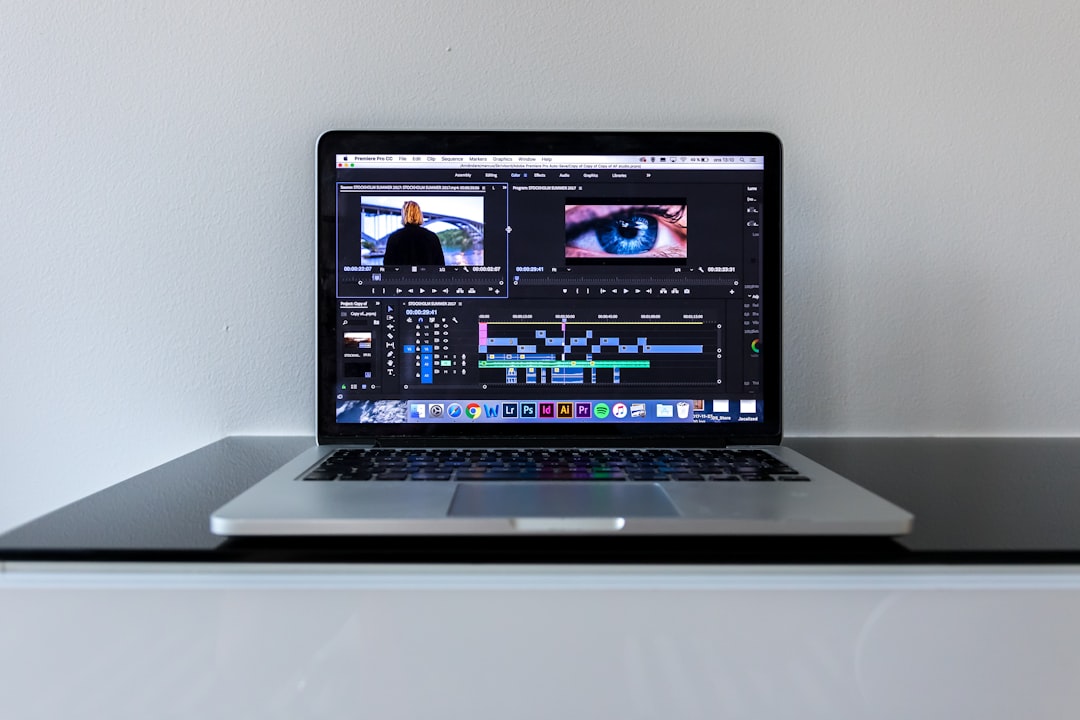
What Makes a Video Cutter Good for YouTube?
A YouTube video cutter should be easy to use. It should not fight you. It should help you work faster.
Look for these features:
- Easy trimming: You should cut the start and end of clips fast.
- Split tool: You need to slice clips in the middle.
- Fast playback: Lag is the enemy of joy.
- Simple exports: YouTube likes MP4 files.
- Shorts support: Vertical video matters now.
- Text tools: Captions and titles help viewers stay.
- Audio controls: Bad sound can ruin a good video.
- Templates: These can speed up repeat edits.
Also think about your computer. Some editors need a strong machine. Others work well on phones or basic laptops.
The Quick Answer: Best Picks by Creator Type
There is no one perfect video cutter for everyone. That would be too easy. And the internet does not like easy.
Here are simple picks:
- Best for beginners: CapCut
- Best free pro editor: DaVinci Resolve
- Best for serious YouTubers: Adobe Premiere Pro
- Best for Mac users: Final Cut Pro
- Best simple paid editor: Wondershare Filmora
- Best browser option: Clipchamp
Now let’s look at each one.
CapCut: Best for Beginners and YouTube Shorts
CapCut is fun. It feels modern. It is easy to understand. You can use it on your phone, tablet, or computer.
It is great for YouTube Shorts. You can cut clips, add captions, use effects, and export vertical videos quickly.
CapCut is also strong for talking-head videos. You can remove mistakes. You can add zooms. You can use auto captions. That is a big win.
Why creators like it:
- It is beginner-friendly.
- It has many trendy effects.
- It works well for vertical video.
- Auto captions are easy.
- The basic tools are simple.
Watch out for:
- Some effects may feel too flashy.
- Advanced editing can feel limited.
- Some features may require payment.
Best for: New creators, vloggers, Shorts creators, and anyone who wants fast edits without stress.
DaVinci Resolve: Best Free Powerhouse
DaVinci Resolve is wild. It is free, but it feels expensive. In a good way.
It has cutting tools, color tools, audio tools, effects, and more. Many professionals use it. Yet beginners can still learn the basics.
The “Cut” page is useful for YouTube creators. It lets you trim clips quickly. You can build a rough edit fast. Then you can polish later.
Why creators like it:
- The free version is very powerful.
- Color correction is amazing.
- It handles long videos well.
- It has pro audio tools.
- No monthly fee for the free version.
Watch out for:
- It can feel scary at first.
- It needs a decent computer.
- Some advanced features take time to learn.
Best for: Creators who want to grow. Also great for video essays, tutorials, documentaries, and high-quality YouTube videos.

Adobe Premiere Pro: Best for Serious YouTube Creators
Adobe Premiere Pro is a classic. Many YouTubers use it. Many studios use it too.
It gives you control over almost everything. Cutting is smooth. Organizing clips is strong. Audio tools are useful. Text and graphics are flexible.
It also works well with other Adobe apps. If you use graphics, motion effects, or thumbnails in other tools, this can be helpful.
Why creators like it:
- It is powerful and flexible.
- It works for many video types.
- It has strong keyboard shortcuts.
- It is good for team workflows.
- There are many tutorials online.
Watch out for:
- It uses a subscription.
- It can be heavy on your computer.
- Beginners may need practice.
Best for: Regular YouTubers, editors, agencies, and creators who want long-term pro tools.
Final Cut Pro: Best for Mac Lovers
Final Cut Pro is fast. Very fast. If you use a Mac, it can feel smooth and clean.
Its magnetic timeline is different. Some people love it. Some people stare at it like it just stole their lunch. But once you learn it, editing can be quick.
Final Cut Pro is great for YouTube videos, vlogs, travel videos, interviews, and product reviews.
Why creators like it:
- It runs well on Macs.
- It has a one-time purchase price.
- It exports quickly.
- The interface is clean.
- It is stable for many users.
Watch out for:
- It is only for Mac.
- The timeline takes getting used to.
- It may not match every team workflow.
Best for: Mac users who want speed, power, and a clean editing experience.
Filmora: Best Simple Paid Editor
Filmora is made for people who want editing to feel simple. It has a friendly layout. It also includes many effects, transitions, and title styles.
It is not as advanced as Premiere Pro or DaVinci Resolve. But that may be a good thing. Not every YouTuber wants to become a film wizard.
Sometimes you just want to cut a video, add music, add text, and upload.
Why creators like it:
- It is easy to learn.
- It has nice built-in effects.
- It is good for basic YouTube edits.
- The interface is friendly.
- It is less scary than pro tools.
Watch out for:
- It is not the best for complex projects.
- Some assets may cost extra.
- Advanced editors may outgrow it.
Best for: Casual YouTubers, small channels, teachers, coaches, and simple content creators.
Clipchamp: Best for Quick Browser Edits
Clipchamp runs in your browser. That is handy. You do not need a giant software install.
It is good for quick cuts. It can handle simple YouTube videos, ads, social clips, and basic edits.
It is not the strongest tool on this list. But it is convenient. Sometimes convenient wins.
Why creators like it:
- It works in a browser.
- It is simple for beginners.
- It has templates.
- It is good for quick projects.
Watch out for:
- It may struggle with big projects.
- Internet speed can matter.
- Advanced tools are limited.
Best for: Simple edits, quick clips, and creators who do not want to install large software.
What About YouTube Shorts?
YouTube Shorts need a different style. They are fast. They are vertical. They need a hook right away.
For Shorts, your cutter should make it easy to:
- Crop video to 9:16.
- Add captions.
- Cut dead space.
- Add quick zooms.
- Use music and sound effects.
- Export fast.
For Shorts, CapCut is often the easiest choice. It is built for quick social editing. Premiere Pro and DaVinci Resolve can also do Shorts. But they may feel too big for tiny clips.
Free vs Paid: Which Should You Choose?
Free tools are great. Paid tools can be great too. The right choice depends on your goals.
Choose a free video cutter if:
- You are just starting.
- You have a small budget.
- You only need basic cuts.
- You are still testing your channel idea.
Choose a paid video cutter if:
- You edit every week.
- You need advanced tools.
- You want faster workflows.
- You create content for clients.
- You want better support and updates.
Do not buy the most expensive tool just because it sounds professional. A fancy editor will not fix boring content. Sorry. The truth has entered the chat.
The Best Video Cutter for Different YouTube Channels
Different channels need different tools.
For Gaming Channels
Gaming videos can be long. You may have hours of footage. You need fast cutting and good timeline control.
Best picks: DaVinci Resolve, Premiere Pro, Final Cut Pro.
For Vlogs
Vlogs need speed. You cut moments together. You add music. You keep energy high.
Best picks: CapCut, Final Cut Pro, Filmora.
For Tutorials
Tutorials need clear cuts. You may need zooms, captions, and screen recordings.
Best picks: Premiere Pro, DaVinci Resolve, Filmora.
For Video Essays
Video essays need structure. You may use many clips, images, voiceovers, and music.
Best picks: DaVinci Resolve, Premiere Pro, Final Cut Pro.
For Shorts Channels
Shorts need speed and style. Captions matter a lot.
Best picks: CapCut, Premiere Pro, DaVinci Resolve.
Simple Editing Tips for Better YouTube Videos
The tool matters. But your editing choices matter more.
Try these easy tips:
- Cut the first pause. Start with energy.
- Remove repeated words. Keep it clean.
- Cut long silences. Viewers notice them.
- Add pattern breaks. Use zooms, text, or B-roll.
- Use music lightly. Do not drown your voice.
- Check audio levels. Clear sound feels professional.
- Watch the full export. Yes, the whole thing.
A good rule is simple. If a clip does not help the video, cut it. Be kind, but ruthless.
So, What Is the Best Video Cutter?
If you want the simplest answer, here it is.
CapCut is the best video cutter for most new YouTube creators. It is easy, fast, and great for Shorts. It helps you make fun edits without a huge learning curve.
DaVinci Resolve is the best free choice if you want serious power. It may take more time to learn. But it can grow with your channel for years.
Adobe Premiere Pro is the best choice for serious creators who edit often and want professional control. It costs more, but it is flexible and widely used.
If you use a Mac and want speed, Final Cut Pro is a great option. If you want simple paid editing, Filmora works well. If you need quick browser cuts, Clipchamp is handy.
Final Verdict
The best video cutter is the one you will actually use. Not the one with the longest feature list. Not the one your favorite creator uses. Not the one with 900 buttons and a mysterious glowing panel.
Start simple. Learn to cut tightly. Keep your viewers moving. Then upgrade when your ideas need more power.
For most YouTube beginners, choose CapCut. For free pro editing, choose DaVinci Resolve. For full-time creator work, choose Premiere Pro.
Now grab your footage. Cut the boring parts. Keep the good stuff. Make the video. Upload it. Then do it again.
