Changing the desktop background on a Mac is one of the quickest ways to personalize the user experience, boost productivity, or simply refresh the look of the screen. In 2026, macOS continues to make this process intuitive, whether someone prefers using System Settings, Finder, or custom wallpapers downloaded from the web or created personally. With just a few clicks, any Mac user can transform their desktop into something that feels more inspiring and uniquely theirs.
TLDR: Mac users can change their desktop background through System Settings, directly from Finder, or by adding custom wallpapers. System Settings offers the most control, including dynamic and automatic changes. Finder allows for fast right-click changes, and custom images provide complete personalization. The process is simple and takes less than a minute in most cases.
How to Change Desktop Background Using System Settings
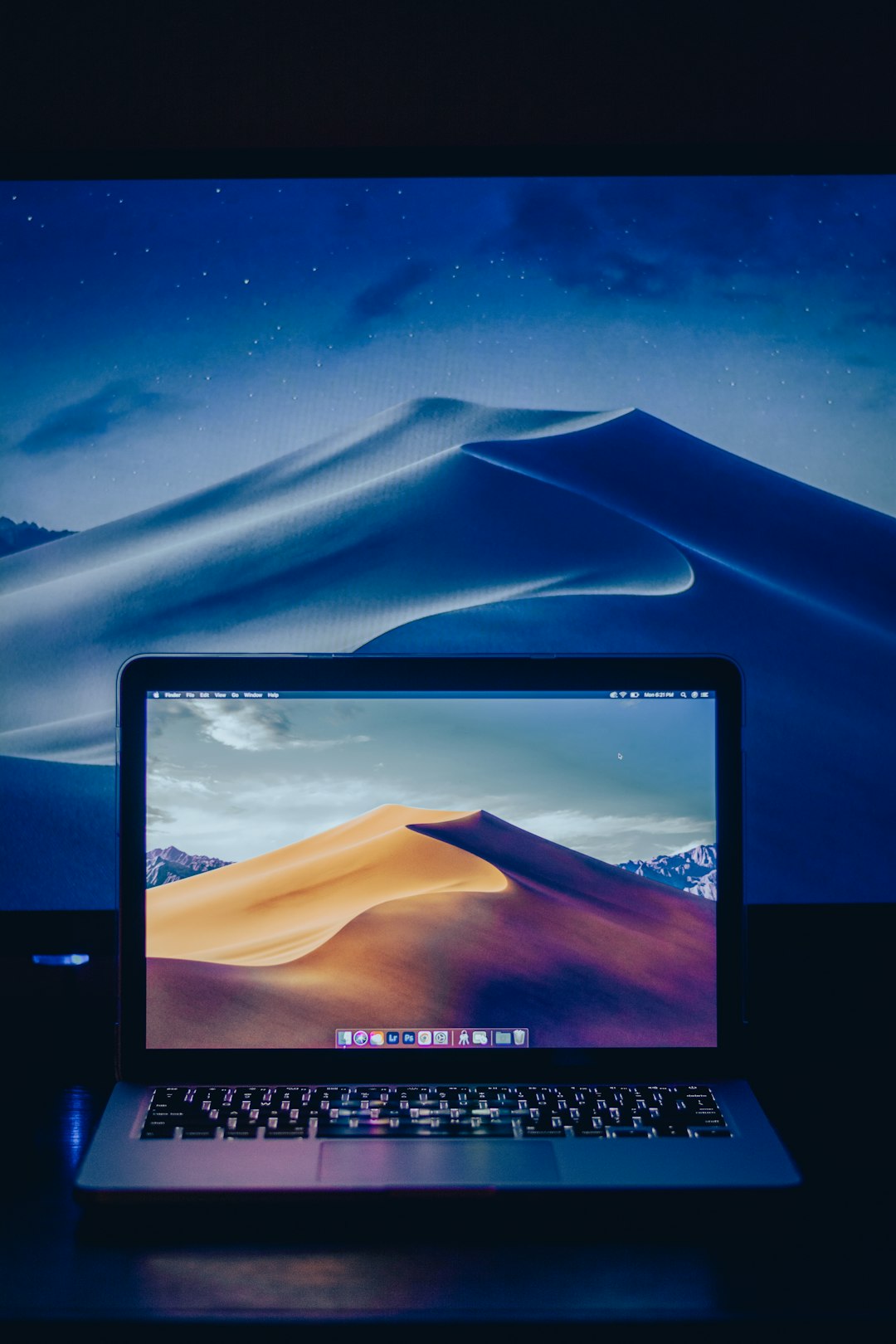
The most common and flexible method for changing the desktop background on a Mac in 2026 is through System Settings. This approach gives users access to built-in wallpapers, dynamic options, colors, and personal photo albums.
Step-by-Step Instructions
- Click the Apple menu in the top-left corner of the screen.
- Select System Settings.
- Scroll down and click Wallpaper.
- Browse through available categories such as:
- Dynamic Wallpapers
- Light and Dark Wallpapers
- Solid Colors
- Photos
- Click any image to instantly set it as the desktop background.
Why Choose System Settings?
- Access to Apple’s latest wallpapers
- Dynamic backgrounds that change throughout the day
- Automatic wallpaper rotation
- Integration with Photos app albums
- Multi-display customization
Users running macOS Sonoma, Sequoia, or newer versions in 2026 will notice smooth animations and high-resolution landscape options that adapt to light and dark mode automatically.
How to Change Desktop Background Using Finder
For those who prefer speed and simplicity, Finder offers a quick way to set an image as the desktop wallpaper without opening System Settings.
Image not found in postmetaStep-by-Step Instructions
- Open Finder.
- Navigate to the folder containing the image.
- Right-click (or Control-click) the image file.
- Select Set Desktop Picture from the context menu.
The background will change immediately.
When to Use Finder
- When downloading a new wallpaper from the internet
- When selecting images stored on an external drive
- When quickly testing multiple backgrounds
- When avoiding additional menu navigation
This method is ideal for users who frequently update their wallpaper and want minimal clicks involved.
How to Use Custom Wallpapers on Mac
Custom wallpapers offer complete freedom. Whether someone designs their own image, downloads 5K landscape photos, or uses digital art, macOS makes integration simple.
Option 1: Drag Into Wallpaper Settings
- Open System Settings → Wallpaper.
- Drag an image file directly into the wallpaper window.
- Click the added image to set it.
Option 2: Add Folder for Automatic Rotation
- Open System Settings → Wallpaper.
- Click Add Folder (if available in your macOS version).
- Select a folder with multiple images.
- Enable Change picture and choose a time interval (e.g., every 5 minutes, hourly, daily).
Recommended Wallpaper Resolution
- MacBook Air 13-inch: 2560 × 1664
- MacBook Pro 14-inch: 3024 × 1964
- MacBook Pro 16-inch: 3456 × 2234
- 5K iMac: 5120 × 2880
Using images that match or exceed the display resolution ensures clarity and avoids pixelation.
Comparison of Methods
| Method | Best For | Speed | Customization Level | Ease of Use |
|---|---|---|---|---|
| System Settings | Full control and dynamic wallpapers | Medium | High | Very Easy |
| Finder Right-Click | Quick changes | Fastest | Low to Medium | Extremely Easy |
| Custom Folder Rotation | Frequent automatic updates | Medium | Very High | Easy |
Each method serves a different need, but System Settings remains the most comprehensive option in 2026.
Setting Different Wallpapers on Multiple Displays
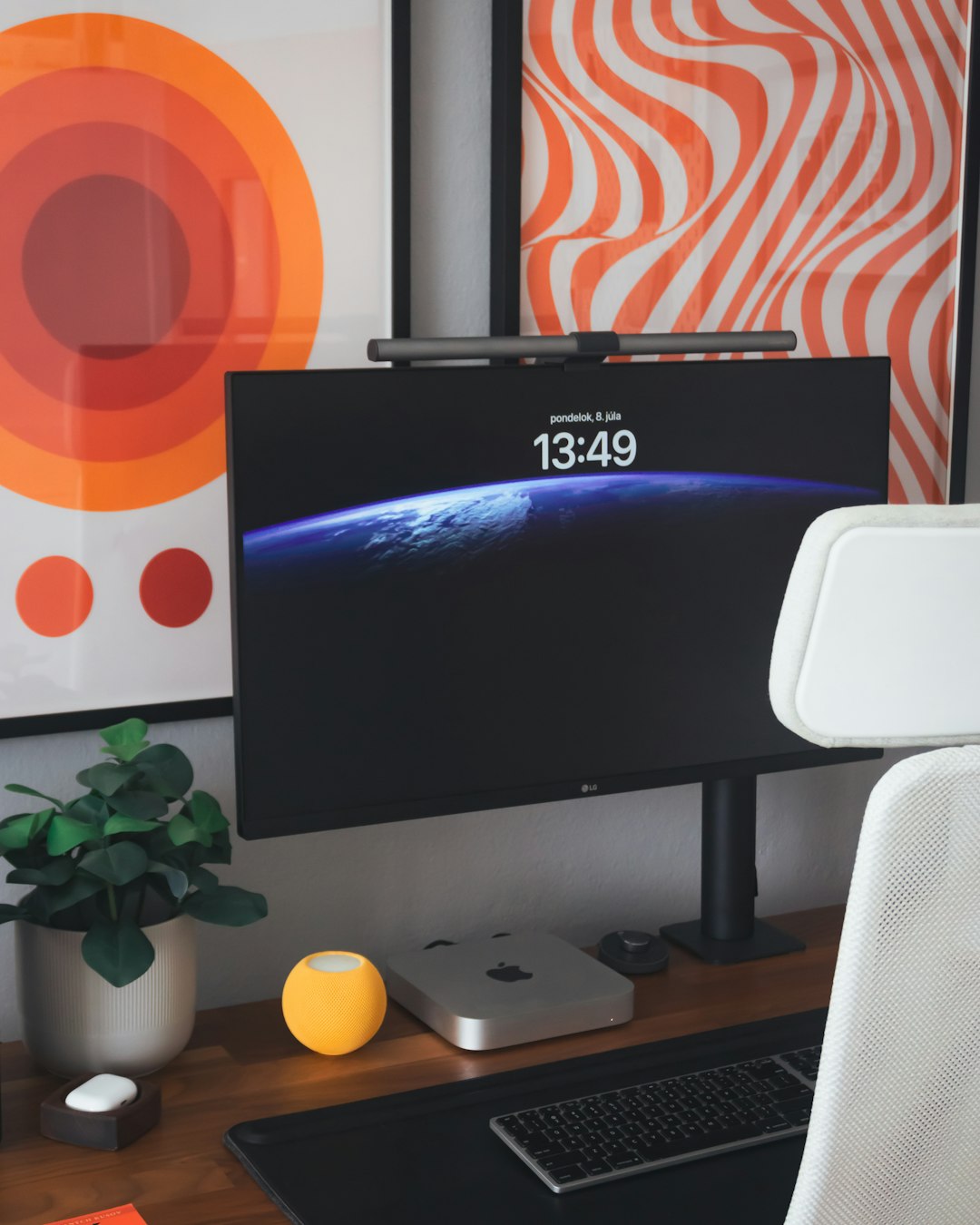
Many Mac users work with dual or triple monitor setups. macOS allows separate backgrounds per display.
How to Set Per-Display Wallpapers
- Connect external monitor(s).
- Open System Settings → Wallpaper.
- Click on the display thumbnail at the top of the panel.
- Choose a different wallpaper for each screen.
This feature is particularly useful for productivity setups where one screen may benefit from a minimal design while another showcases creative visuals.
Tips for Choosing the Right Wallpaper
- Keep icons readable: Avoid overly busy backgrounds.
- Use darker images for focus: Dark tones reduce eye strain.
- Test Light/Dark compatibility: Ensure it looks good in both modes.
- Match your aesthetic: Minimal, professional, nature, abstract, or personal photography.
- Optimize for resolution: Always select high-resolution images.
Some users also prefer minimalist wallpapers to create a clean workspace feel, while others use motivational quotes or scenic photographs to stay inspired.
Troubleshooting Common Wallpaper Issues
Wallpaper Resets After Restart
- Ensure the image is stored locally (not on a disconnected external drive).
- Check login items and automation apps.
- Update macOS if the issue persists.
Blurry or Pixelated Wallpaper
- Use higher resolution images.
- Avoid stretching low-resolution photos.
- Match aspect ratio with the device’s display.
Cannot Right-Click “Set Desktop Picture”
- Verify the file is an image format (JPG, PNG, HEIC).
- Check Finder permissions.
- Restart Finder if needed.
Automation and Dynamic Wallpapers in 2026
In recent macOS versions, Apple has improved dynamic wallpapers that change based on time of day. Users can also create automations using Shortcuts to switch backgrounds according to:
- Time of day
- Location
- Focus mode activation
- Calendar events
This level of automation makes desktop personalization both aesthetic and functional.
Frequently Asked Questions (FAQ)
1. How do you change the desktop background quickly on Mac?
The fastest method is to right-click an image in Finder and select Set Desktop Picture. This changes the wallpaper instantly without opening System Settings.
2. Can you use live or animated wallpapers on Mac?
macOS supports dynamic wallpapers that shift based on time of day. For fully animated wallpapers, third-party apps are required, as native support remains limited.
3. Why does the wallpaper look blurry?
This usually happens when the image resolution is lower than the screen’s native resolution. Using a higher-resolution image matching the display size resolves the issue.
4. How do you set different wallpapers for multiple monitors?
Open System Settings → Wallpaper, select each display thumbnail, and assign a unique image to each monitor.
5. Can you rotate wallpapers automatically?
Yes. Add a folder of images in System Settings and enable the automatic change option, selecting how often the wallpaper should rotate.
6. Does changing wallpaper affect battery life?
Static wallpapers have negligible impact. Dynamic or frequently changing wallpapers may slightly increase background activity but rarely cause noticeable battery drain.
7. Are HEIC files supported as wallpapers?
Yes. macOS fully supports HEIC, along with JPG and PNG files.
Changing the desktop background on a Mac in 2026 remains a simple but powerful way to personalize the device. Whether using System Settings for full customization, Finder for speed, or high-resolution custom wallpapers for creative control, users can tailor their workspace in seconds. With support for multiple displays, automatic rotations, and dynamic visuals, macOS continues to make desktop personalization intuitive and highly flexible.
