
Keeping your Mac keyboard clean is not just about appearance—it is essential for maintaining performance, preventing key failure, and extending the lifespan of your device. Crumbs, dust, and debris can accumulate beneath the keys over time, interfering with typing accuracy and, in some cases, damaging sensitive internal components. Cleaning a Mac keyboard requires patience, the right tools, and a clear understanding of what to avoid. Using improper methods can cause more harm than the debris itself.
TLDR: Cleaning crumbs out of a Mac keyboard safely involves turning the device off, using compressed air carefully, and avoiding excessive moisture or sharp tools. The safest methods rely on gentle airflow, soft brushes, and minimal contact with internal components. Never pry off keys unless you are trained to do so, especially on modern MacBook keyboards. A cautious, systematic approach protects both the key mechanism and internal circuitry.
Before starting, it is important to understand that Apple keyboards—especially modern MacBook models—use low-profile mechanisms that are more delicate than traditional keyboards. Aggressive cleaning can break stabilizers, dislodge keycaps, or force debris deeper into the keyboard assembly. The goal is not to disassemble the keyboard but to remove loose debris safely and effectively.
Why Crumbs Are a Serious Issue
It may seem harmless to ignore a few crumbs, but debris buildup can lead to:
- Sticky or unresponsive keys
- Inconsistent key travel or feedback
- Blocked key mechanisms
- Potential internal corrosion if moisture is present
- Shortened keyboard lifespan
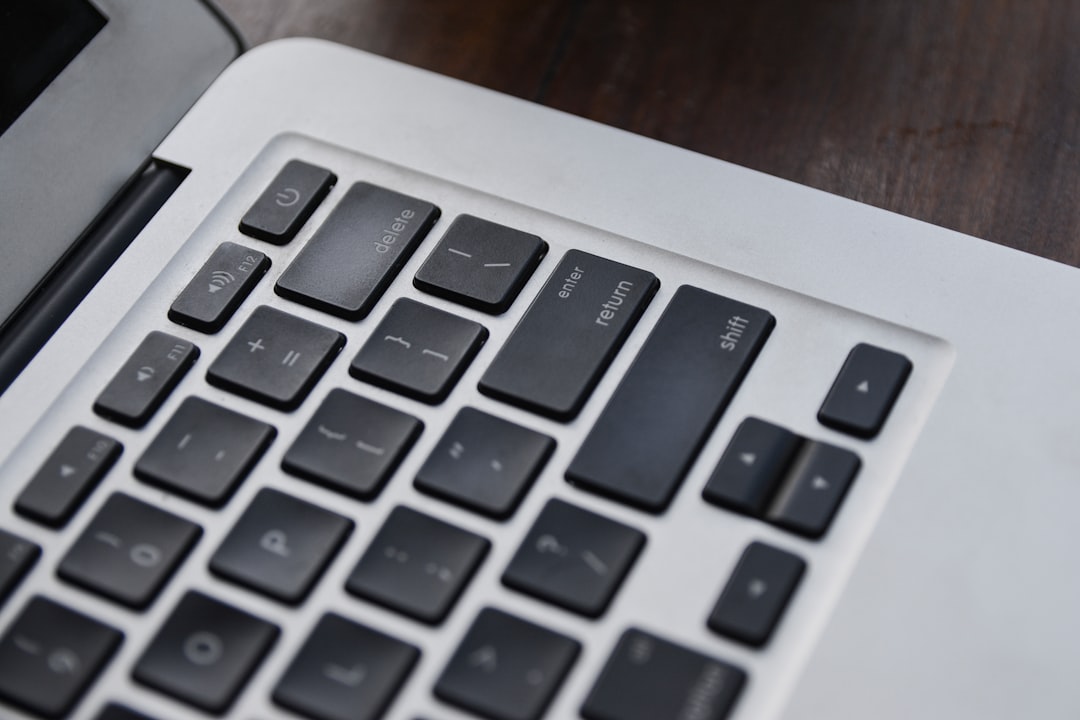
Fine particles such as dust and food crumbs can wedge themselves beneath keycaps. Over time, this accumulation may interfere with scissor or butterfly mechanisms, particularly in older MacBook designs. Understanding how to remove debris without forcing it deeper is crucial.
Step 1: Power Down and Unplug
Always begin by turning off your Mac completely. If you are using a desktop Magic Keyboard, disconnect it from your computer. For MacBooks, shut down the machine—not just sleep—and unplug any power adapters.
This precaution:
- Prevents accidental key activation
- Reduces risk of short circuit
- Ensures internal components are electrically inactive
Never clean a keyboard while the device is powered on.
Step 2: Position the Keyboard Correctly
For MacBooks, Apple recommends holding the device at a 75-degree angle rather than fully upside down. This allows debris to fall out naturally without stressing the key mechanisms.
Hold the keyboard so gravity assists you, not works against you. For external keyboards, you may gently turn the keyboard upside down and lightly tap the back—never hit it forcefully against a surface.
Step 3: Use Compressed Air Properly
Compressed air is one of the safest and most effective tools for removing crumbs—if used correctly.
Best practices:
- Use short bursts, not continuous spray
- Keep the nozzle at least half an inch away from the keys
- Hold the can upright to avoid liquid discharge
- Spray in a left-to-right motion
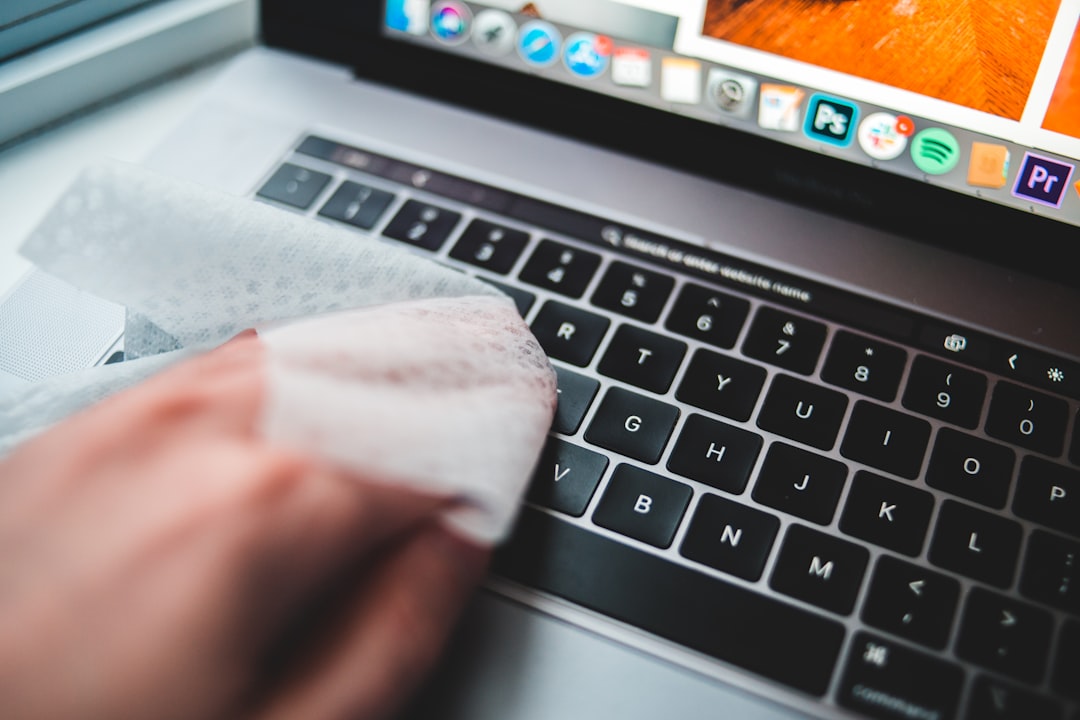
For MacBooks, spray across one side of the keyboard, then rotate the device to the opposite side and repeat. This multi-angle approach helps dislodge particles trapped under key edges.
Avoid tilting the compressed air can. Doing so can release propellant liquid that may cause moisture damage.
Step 4: Use a Soft Brush for Stubborn Debris
If crumbs remain after using air, a soft-bristled brush can help guide debris outward.
Recommended brush types:
- Camera lens brushes
- Clean makeup brushes
- Anti-static electronics brushes
Gently sweep across the edges of the keys. Do not push downward between keycaps, as this may force debris further inside.
Step 5: Cleaning Surrounding Surfaces (Minimal Moisture)
Sometimes crumbs leave behind oily residue. To clean the surface safely:
- Lightly dampen a microfiber cloth with water
- Wring it thoroughly so it is barely moist
- Wipe the tops of keys only
Never pour liquid directly onto the keyboard. Even small amounts of liquid can seep beneath the keys.
For disinfecting purposes, you may use a wipe containing 70% isopropyl alcohol, but ensure it is not dripping wet.
Tools Comparison Chart
Choosing the right tool makes the difference between safe cleaning and accidental damage. The table below compares commonly used keyboard-cleaning tools:
| Tool | Effectiveness Against Crumbs | Risk Level | Recommended Use |
|---|---|---|---|
| Compressed Air | High | Low (if used properly) | Primary method for loose debris |
| Soft Anti Static Brush | Moderate to High | Low | Stubborn particles near key edges |
| Microfiber Cloth | Surface only | Low | Cleaning key tops |
| Vacuum Cleaner | Moderate | Medium | Only with low suction and caution |
| Keycap Removal Tools | High (internal access) | High | Not recommended for most Mac keyboards |
Should You Use a Vacuum?
A small electronics vacuum can be used cautiously, but standard household vacuums are generally too powerful. Excess suction may:
- Loosen or remove keycaps
- Damage internal mechanisms
- Create static discharge
If using a vacuum, ensure it is specifically designed for electronics and has adjustable low suction settings.
What You Should Never Do
To protect your Mac keyboard, avoid the following:
- Do not pry off keys unless you have verified they are designed for safe removal
- Do not insert sharp objects like toothpicks or paperclips
- Do not use canned air continuously without pausing
- Do not spray cleaning solutions directly on the keyboard
- Do not shake the keyboard aggressively
Modern MacBook keyboards, particularly those with butterfly mechanisms (2015–2019 models), are especially sensitive. Even newer scissor-switch models are not designed for routine key removal.
When Professional Cleaning Is Necessary
If keys remain sticky, unresponsive, or uneven after careful cleaning, professional service may be required. Signs you should seek professional assistance include:
- Keys that do not register despite cleaning
- Repeated characters appearing unexpectedly
- Visible damage under keycaps
- Liquid spills accompanying the debris
Technicians have specialized tools and experience to safely disassemble keyboards without causing structural damage.
Preventing Future Crumb Buildup
Prevention is easier than repair. Adopt habits that reduce debris accumulation:
- Avoid eating directly over your keyboard
- Wash hands before typing
- Use a silicone keyboard cover if appropriate for your model
- Store your MacBook in a clean environment
- Perform light compressed air cleaning monthly

Routine maintenance prevents heavy buildup, minimizing the need for deep cleaning.
Final Thoughts
Cleaning crumbs out of a Mac keyboard safely requires a deliberate and careful process. The key principles are simple: power down first, use controlled airflow, apply gentle brushing if necessary, and avoid excessive moisture or disassembly. Modern Mac keyboards are engineered with precision components that do not tolerate aggressive handling.
By following a structured and cautious approach, you can maintain optimal keyboard performance without risking damage to delicate internal mechanisms. A clean keyboard not only improves typing accuracy but also preserves the integrity and longevity of your Mac.
Consistency and restraint are the foundation of safe keyboard maintenance.
