Database migration in WordPress is an essential task during site development, rebranding, hosting changes, or performing large-scale updates. While it’s a routine procedure for many website administrators and developers, it’s also a process that can go terribly wrong if not handled with careful attention to data security. From broken links to lost posts and corrupted databases, the stakes are high when moving a WordPress site from one location to another.
TL;DR
Database migration in WordPress should always prioritize data safety. This involves thorough preparation, secure tools, and post-migration validation. Automating tasks with reliable plugins and backing up the entire website are essential steps. Following best practices significantly reduces the risk of data loss, downtime, and SEO damage.
Understanding WordPress Database Migration
WordPress utilizes a MySQL or MariaDB database to store almost every piece of information on your site — from user data and content to theme settings and plugin configurations. Migrating this massive pool of information means manually or automatically transferring the database and related files from one server to another or from local development to a live environment.
There are typically two scenarios for a WordPress database migration:
- Moving from Local to Live Server: When development is done in a local environment and needs to go live.
- Changing Hosting Providers: When switching hosts for better performance, cost, or support.
Regardless of the reason, the goal remains the same: to ensure the site’s continuity and integrity throughout the transition.
Best Practices for Safe WordPress Database Migration
1. Perform a Full Backup
The first and foremost rule of any migration is to create a complete backup of the database and WordPress files. Use tools like UpdraftPlus, Duplicator, or manually export your database using phpMyAdmin, and download your WordPress directory via FTP.
Backup Areas to Cover:
- WordPress database
- wp-content folder (themes, plugins, uploads)
- .htaccess and wp-config.php files
2. Choose Trusted Migration Tools
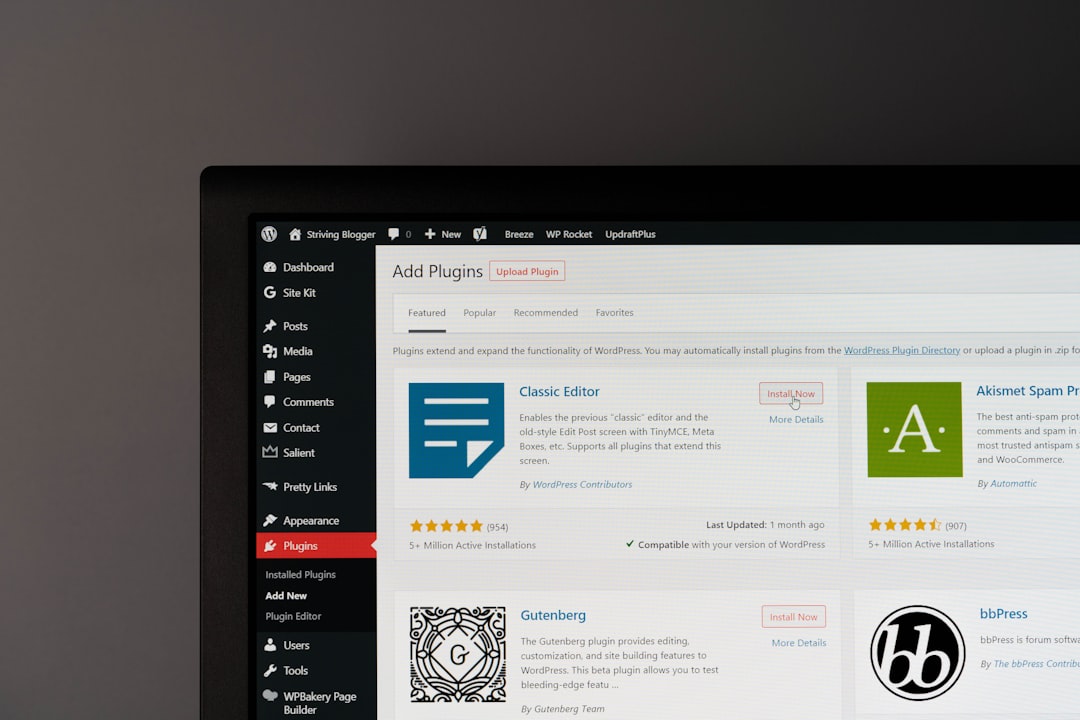
Numerous plugins and tools can automate the migration process, drastically reducing risks related to human error. Opt for well-reviewed and widely-used plugins such as:
- All-in-One WP Migration
- WP Migrate
- Duplicator
These plugins generally handle serialization issues, URL replacements, and file movements seamlessly.
3. Update URLs and File Paths
WordPress stores the site’s URL in various locations within its database. A common migration mistake is forgetting to update strings like the site URL, image paths, or internal links, leading to broken pages post-move.
Use a search-and-replace tool like Better Search Replace or WP-CLI commands to safely update all URLs, ensuring serialization is preserved. Never use basic find/replace in raw SQL files without proper tooling, as it can corrupt the serialized data.
4. Use Staging Environments
Never perform a direct live migration. Use a staging environment to test the migrated site and verify functionality before making the new version public. This step will help address issues discreetly, such as missing files, plugin conflicts, or improper permissions.
Some managed WordPress hosting providers offer one-click staging capabilities, making this process extremely convenient.
5. Maintain Database Integrity
Once transferred, validate the integrity of the database by checking logs, inspecting tables, and running site diagnostics. Simple SQL commands like CHECK TABLE, REPAIR TABLE, and OPTIMIZE TABLE in phpMyAdmin can help ensure everything is functioning correctly and efficiently.
Also, examine the wp_postmeta and wp_options tables closely, as these often store serialized data that may break during improper migration.
6. Check File Permissions & Security
New server environments may have different permission protocols. Incorrect settings could leave your site vulnerable or non-functional. Ensure that file permissions are set to:
755for directories644for files
Additionally, protect your wp-config.php and .htaccess files, and verify SSL implementation post-migration.
7. Enable Error Logging
Keeping error logging turned on during and after the migration helps catch PHP errors or server-level issues. Add the following to wp-config.php for detailed logging:
define('WP_DEBUG', true);
define('WP_DEBUG_LOG', true);
define('WP_DEBUG_DISPLAY', false);
This ensures all errors are stored in wp-content/debug.log without showing them publicly to site visitors.

Post-Migration Checks
Once migration is complete, a thorough assessment is required to confirm everything is working as expected.
- Visit different pages to check layouts and media rendering
- Confirm plugin and theme functionality
- Test user logins and forms
- Run SEO audits to ensure no meta data is missing
- Submit updated sitemaps to Google Search Console
Additionally, monitor site performance using tools like GTmetrix or PageSpeed Insights to determine if the new hosting environment has affected load times or server response rates.
Common Mistakes to Avoid
- Overwriting wrong files: Always double-check destination paths.
- Not replacing URLs properly: This often results in broken layouts and missing images.
- Skipping Compatibility Tests: Old plugins or PHP versions might malfunction on the new server.
- Not disabling cache and security plugins: These may interfere with the migration process and result post-launch issues.
FAQ
- Q: What is the safest way to migrate a WordPress site?
A: The safest way involves taking full backups, using a trusted migration plugin, testing on a staging site, and thoroughly checking links and settings after the transfer. - Q: Can I manually migrate a WordPress database without a plugin?
A: Yes, but it requires exporting the database via phpMyAdmin, updating URLs properly, and importing it back on the new server. Always use search-and-replace tools that preserve serialization if you go this route. - Q: Do I need to update my wp-config.php during migration?
A: Yes, especially if the database name, username, password, or host changes. You’ll also need to review the path settings if the file structure differs. - Q: What should I do if my site breaks after migration?
A: Revert to your backup immediately, identify what went wrong (commonly URL issues or permission problems), and test the process again using a staging environment. - Q: How long does a WordPress migration usually take?
A: Depending on site size and method, it can take anywhere from 30 minutes to several hours. Planning and pre-testing usually save a lot of time overall.
In conclusion, a well-planned WordPress database migration is critical for maintaining website performance, protecting data, and ensuring a seamless user experience. By adhering to the best practices outlined above, teams can minimize risk and transition safely to any new environment with confidence.
