
Ever tried browsing the internet on your Vizio TV and found yourself scratching your head, wondering, “Wait… where’s the browser?” You’re not alone. Unlike some smart TVs, most Vizio models don’t come with a built-in web browser. That can seem a bit disappointing—but don’t worry. There are some great workarounds that let you surf the web from your couch.
TL;DR (Too Long; Didn’t Read)
Most Vizio TVs don’t have a web browser built-in. This helps keep the system cleaner, faster, and easier to use. But you still have options like screen casting, using HDMI devices, or plugging in a streaming dongle. These tricks let you browse the web on your TV without the hassle.
Why Vizio Doesn’t Include a Built-in Browser
Let’s get right to it: Why no browser?
Vizio has a simple answer. Their TVs are designed for streaming—not full web surfing. Their SmartCast platform focuses on letting users access apps like Netflix, Hulu, YouTube, and others. Since those services cover most entertainment needs, Vizio skips adding a browser to avoid:
- Cluttering the interface
- Slowing down the system
- Extra maintenance and updates
- Potential security vulnerabilities
In short: Fewer features = better performance. But don’t stress! You can still browse the web—you just need a little creativity.
Option 1: Casting From Your Phone or Laptop
This is the easiest method to get web browsing on your TV.
What you need:
- A smartphone or laptop
- Google Chrome or another casting-enabled app
- A Vizio Smart TV with SmartCast
Once you have those:
- Connect both devices to the same Wi-Fi network.
- On your phone or laptop, open the browser and pull up the website you want.
- Tap the cast icon (looks like a rectangle with Wi-Fi waves).
- Select your Vizio TV from the list.
Tada! Your TV is now showing the same browser screen as your device. You can scroll and click just like normal—except now it’s on a big screen!
Option 2: HDMI Devices – Use a Streaming Stick or Laptop
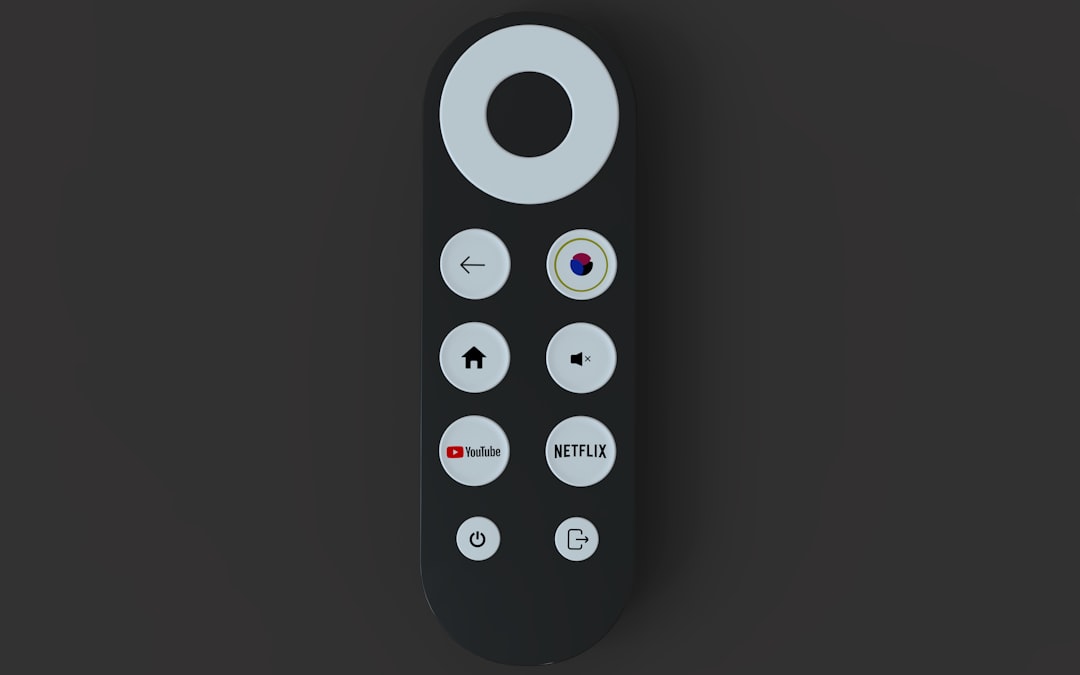
Here’s a solid method that feels more like the “real deal.” Plug in a device that does have a browser.
Popular picks include:
- Amazon Fire Stick
- Google Chromecast with Google TV
- Apple TV 4K
- Or even an old laptop with an HDMI port
Once plugged into your Vizio’s HDMI port, you can:
- Install browser apps like Firefox or Silk (on Fire Stick)
- Control navigation with a remote or app
- Explore websites like you’re using a smart screen
You might prefer this method if you want more control than your phone offers. It feels like having a mini computer on your TV.
Option 3: Use a Mini PC or Old Laptop
If you love tinkering or want the ultimate web experience on your TV, try this:
- Grab an old laptop or a mini PC (like Intel NUC or Raspberry Pi).
- Connect it to your Vizio TV via HDMI.
- Use a wireless keyboard and mouse to control it from your sofa.
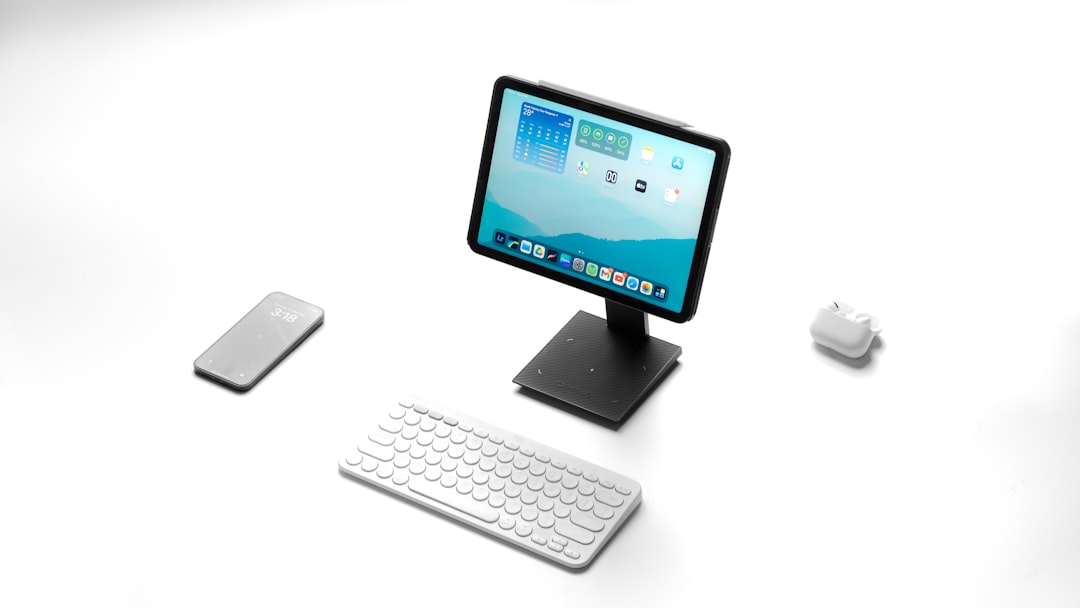
This turns your TV into a full desktop experience. You can open tabs, stream content, type emails, and even play web-based games.
It’s the most flexible choice—but it takes a bit more setup. If you’re not techy, go for casting instead.
What About Vizio’s SmartCast Platform?
SmartCast is Vizio’s custom software that powers their smart TVs. It’s great for most things:
- Streaming shows
- Using popular apps
- Casting from Android and iOS devices
It even lets you control your TV using your phone. Very cool.
But here’s the thing—it’s not meant to browse the web. That wasn’t part of Vizio’s design. So don’t waste time looking for a “browser app” on your TV’s app menu—it’s not there.
Are There Workarounds Directly on the TV?
Some users search the Vizio app store hoping to find a secret browser. Unfortunately, there isn’t one. Even attempts to sideload browser apps using USB or developer mode usually won’t work.
The best workaround: is not on the TV itself—but through the devices you already own.
Pros and Cons of Each Method
Casting:
- Pros: Easy, wireless, works with most devices
- Cons: Needs a second screen (phone or laptop)
HDMI Devices:
- Pros: Remote-based browsing, more app options
- Cons: Extra hardware, may cost money
Mini PC or Laptop:
- Pros: Full PC experience on TV, great for multitasking
- Cons: Needs extra hardware, setup takes time
Tips for a Smoother Experience
Want to make your web-TV combo even better? Here are a few extra tips:
- Use a wireless mouse and keyboard for smoother control
- Adjust your TV’s resolution to match the device’s settings
- Use dark mode or zoom settings for easier reading from a distance
- Make a bookmark folder of your favorite web pages for easy access
Could Vizio Add a Browser Later?
Technically, yes. But it’s unlikely.
It would require a major update and a shift in their software strategy. Since they focus on being streaming-first, a browser adds complexity they likely want to avoid.
Still, if enough users demand it, who knows? Until then, casting and HDMI remain the best solutions.
Final Thoughts
Vizio TVs may not include a browser—but that doesn’t mean you’re stuck. With just a little help from your phone, laptop, or a streaming stick, you can easily bring web browsing to the big screen.
So grab some popcorn, cast your screen, and surf the net right from your couch. Who needs a built-in browser when the workarounds are this easy?
Happy browsing!
